Build Systems - Compilation - Linking
-
Compiled with the C Compilation Process in mind.
Compilation Process
-
-
Good video.
-
The header file example is interesting.
-
The preprocessor examples are good.
-
#define INTEGER int.
-
-
Compiler optimizations shown in ASM.
-
Demonstrates normal vs speed.
-
-
-
Compiling, assembling and linking
-
-
-
Preprocessor
-
Generates
source.i
-
-
Compiler
-
Generates
source.s
-
-
ASM
-
Generates
source.o
-
-
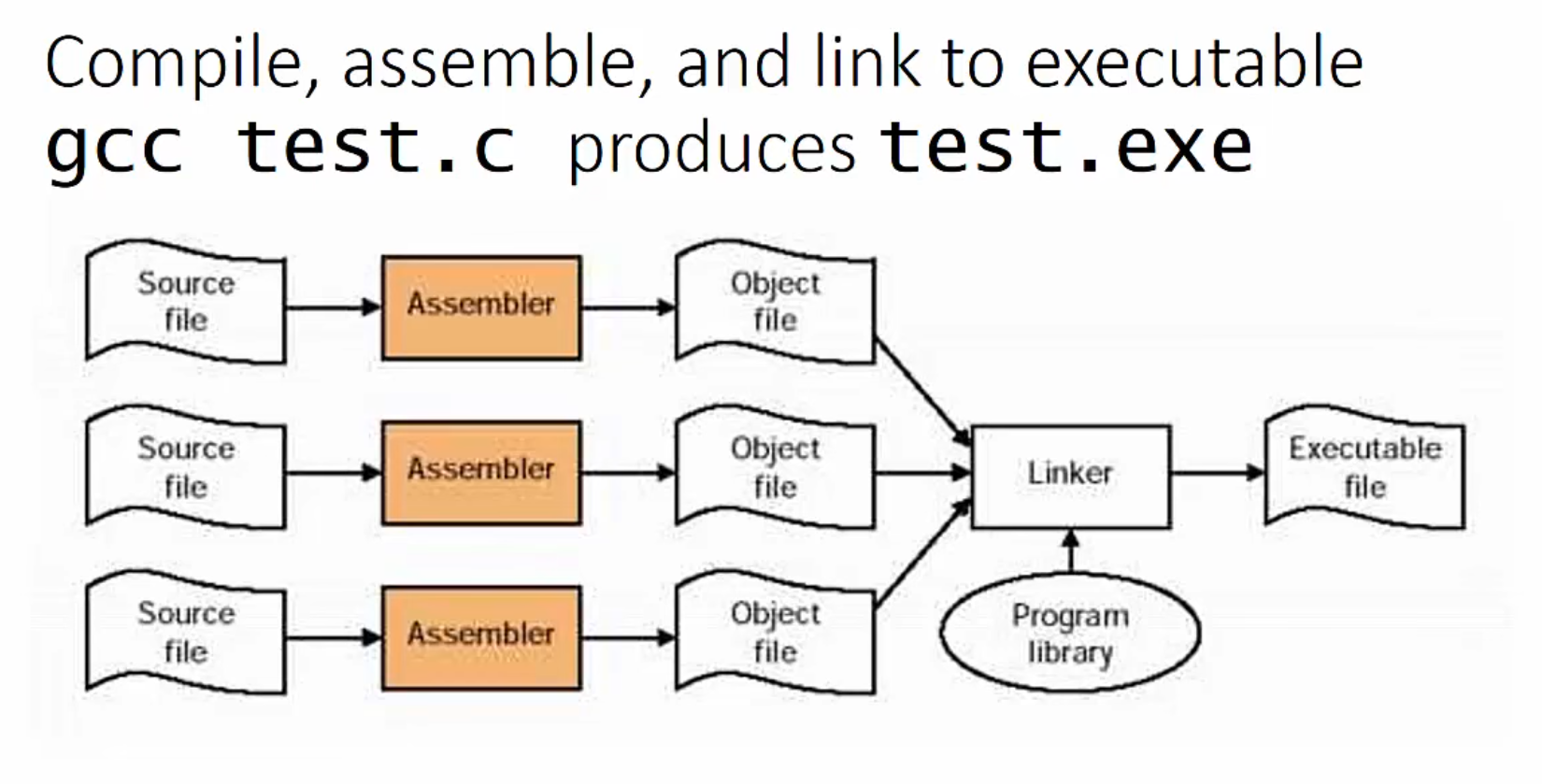
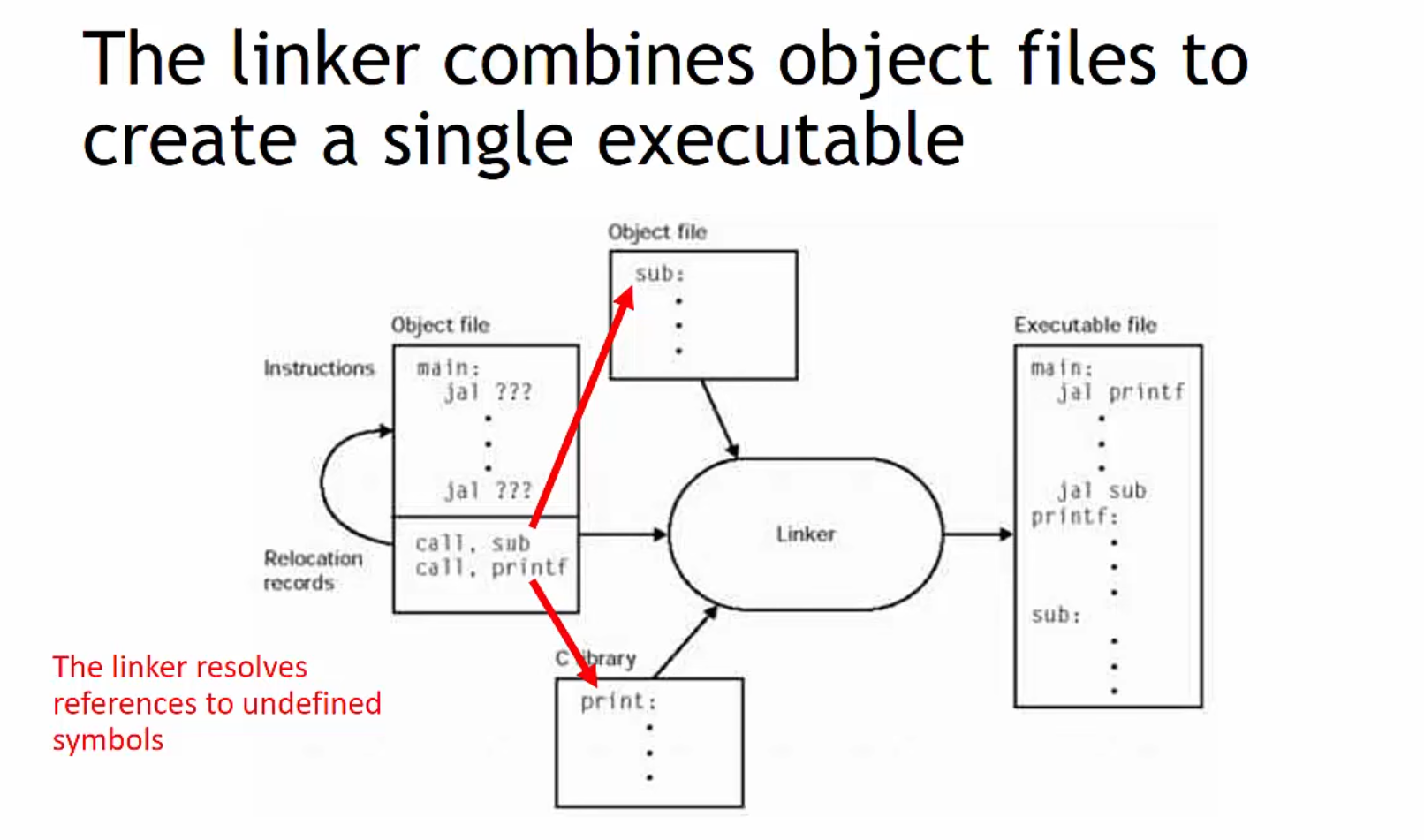
Linker
-
-
Errors starting with C: Compiler Error
-
Errors starting with LNK: Linker Error
-
Many examples of errors caused by Compiler vs Linker.
-
Examples of how
staticandinlineinteract with#include. -
Last example shows linking via header files.
-
Static Linker
-
.lib-
Is the MSVC library format.
-
Can be a Static Library or an Import Library.
-
Static Library (.lib) :
-
Contains compiled object code that is statically linked into the final executable.
-
All code and data from the library are copied into the executable at build time.
-
The resulting executable does not depend on the
.libfile at runtime. -
Used when you want everything in one binary without external dependencies.
-
-
Import Library (.lib) :
-
Provides symbols for linking against a DLL (Dynamic Link Library).
-
Contains only symbol references, not actual code.
-
The executable will require the corresponding
.dllfile at runtime. -
Used when linking against DLLs. The linker uses the
.libto resolve symbols, but the actual code resides in the.dll.
-
-
You can determine whether a
.libis static or import:-
If it's paired with a
.dll, it's likely an import library. -
If there's no
.dll, or the.libis explicitly intended for static linking, then it's a static library.
-
-
-
.a-
Is the GCC/MinGW library format.
-
-
.o
Dynamic Linker
-
Linux:
-
.so
-
-
Windows:
-
.dll
-
-
Mac
-
.dylib
-
Compilers
GCC (GNU C Compiler -> GNU Compiler Collection)
-
Originally, the name was "GNU C Compiler" because it only compiled the C language. Over time, it began to support other languages and was renamed "GNU Compiler Collection".
-
Part of the GNU project; widely used in Linux. Supports multiple languages.
-
License :
-
Open-source GPL.
-
-
Platforms :
-
Windows (via MinGW), Linux, macOS, BSD
-
-
Debugging
-
GDB.
-
-
Minimum requirements :
-
Windows:
-
MinGW.
-
~MSYS2.
-
You don't need MSYS2 to use GCC on Windows. MinGW already provides GCC ready to use.
-
MSYS2 is an additional environment that facilitates installation and package management, but it is not mandatory.
-
-
-
Linux:
-
Just the package.
-
-
-
My version :
-
(2025-06-13) 14.2.0
-
gcc -o main main.c

gcc -o main main.c random.c -lm
MinGW (Minimalist GNU for Windows)
-
It is a set of development tools that allows compiling C, C++, and Fortran code on Windows using the GNU ecosystem (GCC, GDB, Make, etc.), without relying on Microsoft Visual Studio (MSVC).
-
It fits into two main categories:
-
As a Build Tool (providing compilers like
gccandg++). -
As an alternative to MSVC (Microsoft compiler).
-
-
MinGW Features :
-
gccandg++(GNU compilers for C/C++ on Windows). -
make(build tool forMakefile). -
gdb(GNU debugger). -
Standard GNU libraries (glibc, libstdc++).
-
-
UCRT vs MSVCRT :
-
UCRT is available as an alternative to MSVCRT.
-
Unless you are targeting older versions of Windows, UCRT as runtime library is the better choice, as it was written to better support recent Windows versions as well as provide better standards conformance.
-
-
MSYS2 (Minimal SYStem 2)
-
Is a package-based development environment that provides a Unix-like terminal on Windows, along with tools like GCC (MinGW-w64), Make, Git, Python, and a package manager (
pacman, the same as Arch Linux). -
It is an evolution of the old MSYS and Cygwin, but focuses on:
-
Compiling native Windows programs (with MinGW-w64).
-
Offering a Unix-like environment without sacrificing Windows compatibility.
-
Easily managing libraries and dependencies via
pacman.
-
-
MSYS2 has three different "environments," each with a specific purpose:
-
MSYS2
-
Base environment with Bash shell, coreutils (like
ls,grep), andpacmanfor package and script management.
-
-
MinGW-w64 (UCRT/MSVCRT)
-
Compilers to generate native Windows executables.
-
-
CLANG64/CLANG32
-
Versions of Clang/LLVM for Windows.
-
-
-
You choose the environment via the terminal shortcut that opens:
-
MSYS2 Shell (for administration).
-
MinGW-w64 Shell (to compile with GCC).
-
Clang64 Shell (to compile with Clang).
-
-
-
Installation :
pacman -S mingw-w64-x86_64-gcc  # Install GCC 64-bit
pacman -S mingw-w64-i686-gcc    # Install GCC 32-bit
Commands
-
-o-
Sets the name of the output file.
-
-
-std=c11-
Specify Language Standard.
-
C89, C99, C11, C17, etc.
-
-ansi-
Forces compliance with C89/C90.
-
-
-
Compilation :
-
-c-
Compile without linking, creating the object file
.o/.obj.
-
-
-v-
Verbose mode (shows compilation steps).
-
-
-
Linking :
-
-l<name>-
Link with a library.
-
-lm-
Link with the Math Library
libm.-
Needed for functions like
sin(),cos(),sqrt(),pow(), etc.
-
-
-
-lpthread.-
For threads.
-
-
-
-L<path>-
Adds a library directory.
-
-L./lib.
-
-
-static-
Link statically (avoids dynamic dependencies).
-
-
-shared-
Generates a shared library (
.so/.dll).
-
-
-fPIC-
Generates position-independent code (used in shared libs).
-
-
-
Pre-processor / Macro :
-
-I<path>-
Adds an include directory.
-
-I./include.-
Looks for headers in
./include.
-
-
-
-D<macro>-
Defines a macro (ex:
-DDEBUGis equivalent todefine DEBUG).
-
-
-U<macro>-
Undefines a macro.
-
-
-E-
Only preprocesses (outputs
includeanddefineresults).
-
-
-M-
Generates build dependencies (useful for Makefiles).
-
-
-
Debug :
-
-g-
Includes debug symbols (needed for gdb and valgrind ).
-
-
-ggdb-
Optimizes debug symbols for GDB (more detailed than
-g).
-
-
-fsanitize=address-
Detects memory leaks, buffer overflows (AddressSanitizer).
-
-
-fsanitize=undefined-
Detects undefined behavior (UB).
-
-
-fstack-protector-
Protection against stack smashing.
-
-
-fno-stack-protector-
Disables stack overflow protection.
-
-
-
Warnings / Errors :
-
-Wall-
Enable Compilation Warnings.
-
-
-Wextra-
Enables extra warnings beyond
-Wall.
-
-
-Wpedantic-
Enforces strict C standard compliance (complains about GNU extensions).
-
-
-Wno-warning_name-
Disables a specific warning (ex:
-Wno-unused-variable).
-
-
-Werror-
Treat Warning as Errors.
-
-
-
Optimizations :
-
-O0-
No optimization (better for debugging).
-
-
-O1,-O2,-O3-
Levels of code optimization. Higher = faster, but harder to debug.
-
-
-Os-
Optimization for size (reduces executable).
-
-
-Ofast-
Aggressive optimization + relaxes IEEE standards (may affect precision).
-
-
Clang/LLVM (Low-Level Virtual Machine)
-
Focus on modularity, clear error messages.
-
High compatibility with GCC.
-
License :
-
Open-source Apache 2.0.
-
-
Platforms :
-
Windows, Linux, macOS, BSD
-
-
Debugging
-
LLDB.
-
More modern than GDB.
-
-
-
Minimum requirements :
-
Windows / Linux / macOS:
-
LLVM.
-
-
-
My version :
-
(2025-06-13) 19.1.6., x86_64-w64-windows-gnu
-
Installed at
C:/msys64/ucrt64/bin
-
-
LLVM .
-
It is not a single package but a collection of modular tools and libraries for compilation. It forms a complete compilation infrastructure, which can include multiple related components.
-
Depending on the distribution or installation method, not all components may be included.
-
Packages :
-
llvm
-
clang
-
clang-tools-extra
-
flang
-
mlir
-
lld
-
lldb
-
polly
-
libLTO
-
compiler-rt
-
libunwind
-
libc++
-
lib++abi
-
openmp
-
llvm-ar
-
llvm-nm
-
llvm-objdump
-
llvm-cov
-
llvm-profdata
-
llvm-dwarfdump
-
llvm-symbolizer
-
wasm-ld
-
-
-
The video is good, but the guy is overly enthusiastic and pro-Apple.
-
{00:00 -> 12:00}
-
In-depth conceptual explanation.
-
-
{12:00 -> 22:00}
-
ASM code and LLVM code.
-
"Sometimes using ASM directly generates slower code, due to missing compiler optimizations".
-
-
{22:00 -> end}
-
Same, repeating.
-
-
-
-
Decent, I guess.
-
Commands
-
The vast majority of all commands are exactly the same as GCC.
-
Exclusive to Clang :
-
-fcolor-diagnostics-
Displays colored errors/warnings (great for readability).
-
-
-Weverything-
Enables all warnings (even the most pedantic).
-
-
-MJ <file.json>-
Generates JSON output for analysis tools (ex: IDEs).
-
-
Opinions
-
Ginger Bill:
-
I wish I never used LLVM in the first place.
-
It has been the vast majority of the bugs in the Odin compiler.
-
It's slow as fuck, even for development builds.
-
And it gets worse with each release.
-
It's alluring because it's free and is the basis of clang.
-
MSVC (Microsoft Visual C++)
-
It is the default compiler for Visual Studio.
-
cl.exe(MSVC). -
License :
-
Microsoft proprietary.
-
-
Platforms :
-
Windows / Linux.
-
-
Languages :
-
Limited support for C11/C17
-
-
Requirements :
-
Windows:
-
Install Visual Studio (Community Edition is free).
-
Or maybe the Build Tools.
-
Honestly, you will have to download Visual Studio anyway.
-
-
-
Linux:
-
Limited support (using
clang-clor WSL).
-
-
-
My version :
-
14.42.34433 (came with Visual Studio).
-
Had to add
C:\Program Files\Microsoft Visual Studio\2022\Community\VC\Tools\MSVC\14.42.34433\bin\Hostx64\x64to the global PATH environment variable.
-
Commands
-
GCC or Clang equivalents :
-
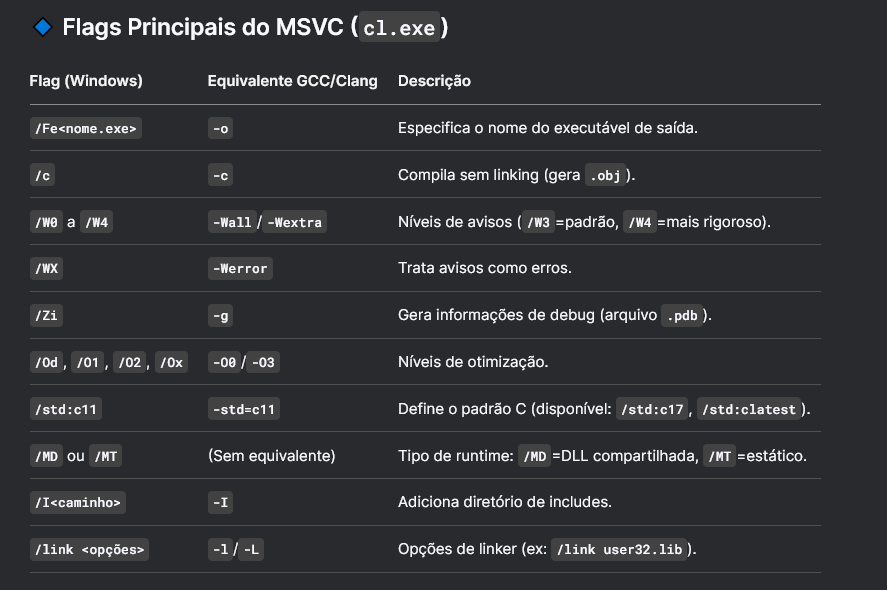 .
.
-
-
MSVC-specific :
-
/MDvs/MT-
Chooses runtime: shared DLL (
/MD) or static (/MT).
-
-
/EHsc-
Enables C++ exceptions (default in C++ projects).
-
-
/JMC-
Supports "Just My Code" in the debugger.
-
-
/MP-
Parallel compilation (speeds up large builds).
-
-
// Equivalent to `gcc -o`
cl hello.c /Fehello.exe

// Compile with maximum warnings and debug
cl /W4 /WX /Zi hello.c /Fehello_debug.exe

// Compile with optimization (`/O2`) and C17 standard
cl /O2 /std:c17 programa.c /Feprograma_otimizado.exe

// Link with Windows libraries (e.g., `user32.lib`)
cl winapp.c /link user32.lib /Fewinapp.exe

// Compile multiple files
cl /c arquivo1.c      # Generates arquivo1.obj
cl /c arquivo2.c      # Generates arquivo2.obj
cl arquivo1.obj arquivo2.obj /Feprograma.exe
Windows SDK
What it includes
-
Headers and Libraries :
-
Header files ( .h ) and linking libraries ( .lib ) to access Windows APIs.
-
Examples:
-
Win32 API : To create windows, manage files, etc.
-
DirectX : For graphics and game development.
-
GDI/GDI+ : For 2D graphics.
-
COM (Component Object Model) : For reusable components.
-
-
-
Compilers :
-
Includes MSVC (Microsoft Visual C++) , used to compile native Windows code.
-
-
Debuggers and Tools :
-
Tools such as WinDbg for advanced debugging.
-
-
Resource Viewers :
-
Tools to create and edit resource files (.rc), like icons, menus, and strings.
-
-
Windows App Certification Kit :
-
Used to validate apps against Microsoft Store guidelines.
-
-
Command-Line Tools :
-
Includes utilities like:
-
rc.exe: Resource file compiler. -
mt.exe: Manifest tool. -
signtool.exe: Binary signing tool.
-
-
-
ARM64 Support :
-
Headers and libraries to compile apps for ARM devices on Windows.
-
QBE
-
https://c9x.me/compile/
-
Ginger Bill:
-
On Windows, and it's actually awful.
-
Worse than LLVM.
-
You have to generate a textual IR that you then pass to its library for it to be consumed.
-
And mainly because you cannot use it as a library whatsoever. It's designed not to be used as a library.
-
QBE is a no-go.
-
I've considered before, and no.
-
Build Tools
-
They execute compilation commands directly (e.g.,
gcc,clang,javac). -
Work with specific configuration files (
Makefile,build.ninja). -
Called manually or by meta-build tools.
Command Runners
About
-
Batch file style.
-
No Incremental Builds, no Change Detection.
-
"Has this source file changed since it was compiled, or its dependencies?"
-
Just (or JustFile)
-
Impressions :
-
Seems to provide very few options for args and conditional execution of programs.
-
Apparently on Windows it must be run via cmd or powershell, so any programming is internally done by the chosen shell, OR through Just’s own language.
-
Didn’t like it.
-
-
Just .
-
Download and place the folder in the environment.
-
-
justis a command runner, similar tomake, but with a more modern and simplified syntax. -
It has no language-specific knowledge like C, Rust, etc.
-
You define recipes in the
justfile, which are basically terminal commands to execute. -
For C projects,
makeor more specialized tools likeCMakeorMesonprovide features like:-
Dependency detection.
-
Incremental compilation.
-
Cross-platform support.
-
-
justis more useful when you want a simple file to organize reusable commands (build, run, test, etc.), without dependency logic between files. -
Tutorial :
-
The file must be named
justfile, without extension.
recipe-name: echo 'This is a recipe!' # this is a comment another-recipe: @echo 'This is another recipe.'-
Running
justwith no arguments runs the first recipe in thejustfile. -
One or more arguments specify the recipe(s) to run.
-
Recipes can depend on other recipes. Here the
testrecipe depends on thebuildrecipe, sobuildwill run beforetest:build: cc main.c foo.c bar.c -o main test: build ./test sloc: @echo "`wc -l *.c` lines of code" -
Recipes without dependencies run in the order given on the command line:
$ just build sloc
cc main.c foo.c bar.c -o main
1337 lines of code
-
Batch
-
.
Ninja
-
Ninja .
-
"Focus on speed".
-
Less flexibility.
-
"It's designed to have its input files generated by a higher-level build system".
-
So don’t use it alone; have something generate Ninja files using a Meta Build System, like CMake.
-
Not designed to be written manually.
-
-
My version :
-
1.12.1.
-
-
-
Ninja vs CMake doesn’t make sense, but Ninja WITH CMake does; it’s a good choice, especially for large projects.
-
GNU Make
-
-
-
Make has an absurdly more confusing syntax.
-
MSBuild / Visual Studio Project
-
Create a project, add files inside using the IDE, click Build Solution .
Disadvantages
-
Completely Windows-focused.
-
Using a VS project limits deployment targets.
-
"Technically possible to export to other platforms, but not easy."
-
-
Less Flexible.
-
You may not always be able to do or get what you want.
-
MSBuild
-
MSBuildis Microsoft’s default build engine for .NET, C++, and others. -
It interprets project files (
.vcxproj,.csproj) and executes build steps. -
Works via command line and is used internally by Visual Studio.
-
Visual Studio uses MSBuild internally when you click Build Solution.
-
Visual Studio does not compile directly – it calls MSBuild (or other systems like CMake).
Visual Studio solution generated by CMake
-
The projects
install,ALL_BUILD, andZERO_CHECKare defaults when CMake generates solutions for Visual Studio. -
ALLBUILD
-
Function: Project that depends on all other projects created by CMake, except
INSTALLandZEROCHECK. -
Used to: Build all defined targets (executables, libraries, etc.) at once.
-
Behavior: Compiling
ALLBUILDbuilds everything configured in CMake.
-
-
ZEROCHECK
-
Function: Ensures CMake reconfigures the project if CMakeLists.txt files change.
-
Used to: Automate regeneration of project files when build configuration changes.
-
Behavior: Runs automatically before any build, unless disabled.
-
-
INSTALL
-
Function: Executes rules defined by
install(...)commands in CMakeLists.txt. -
Used to: Copy binaries, headers, libraries, etc., to defined directories (like
/usr/localor aninstallfolder). -
Behavior: Only makes sense if the CMake script has installation instructions.
-
Bazel
-
From Google.
-
For multiple languages: Java, C++, Go, etc.
-
Requirements :
-
Bazelisk.
-
-
-
User experience was kind of messy.
-
Gradle
-
Java/Kotlin.
-
Build manager for the JVM (Android, Java, etc.).
XCodeBuild
-
Build tool for macOS/iOS projects (Xcode).
Meta Build Tools
About
-
"Build tool for build tools".
-
Generate build files for other tools (do not compile directly).
-
Allow cross-platform configuration (Linux, Windows, macOS).
-
Use languages or DSLs (CMakeLists.txt, Meson.build, etc.).
-
"Great for working with different compilers in different types of systems".
CMake
-
CMake .
-
Cross-platform.
-
My version :
-
cmake-3.31.3-windows-x86_64.msi.
-
-
Can use Make, Ninja, etc.
Commands
-
cmake-
Starts CMake.
-
-
-S "./../"-
Sets the source directory where the
CMakeLists.txtis. -
Here: The source directory is the parent of the current directory (
./../).
-
-
-B "vs2022_x64"-
Sets the build directory where CMake and Visual Studio generated files will be placed.
-
Here:
vs2022_x64.
-
-
-G "Visual Studio 17 2022"-
Specifies the generator, i.e., the type of project to generate.
-
Here: Solution for Visual Studio 2022.
-
-
-A x64-
Sets the build architecture .
-
Here: 64-bit.
-
-
-DCMAKE_INSTALL_PREFIX:String="SDK"-
Sets the
CMAKE_INSTALL_PREFIXvariable to"SDK".-
Defines the installation path for project artifacts (e.g., when running
cmake --installor theINSTALLtarget).
-
-
Here:
"SDK"will be the installation prefix. -
Note:
:Stringis redundant here. CMake correctly interprets-DVAR=VALUEwithout type.
-
-
-DCMAKE_BUILD_TYPE:String=Distribution-
Sets
CMAKE_BUILD_TYPEto"Distribution".-
Single-config builds (like Makefile or Ninja).
-
-
Note : Ignored in multi-config generators like Visual Studio, where build type (Debug/Release/etc.) is selected in the IDE or via
--config.
-
-
%*-
Inserts all arguments passed to the script/batch.
-
Allows passing additional arguments.
-
Breaking when moving
-
CMakeCache.txtstores absolute paths to source and build directories. -
Visual Studio project files generated by CMake (like
.vcxproj) also reference absolute paths. -
If you move the folder, these paths become invalid, causing build errors or inability to open in Visual Studio.
-
Options :
-
Recreate the build folder:
-
Delete the build folder (not the source folder).
-
Move the source folder to the new location.
-
Recreate the build directory in the new location:
cmake .. -G "Visual Studio 17 2022" -
Open the generated
.slnfile in Visual Studio again.
-
-
Delete all CMake-generated files.
-
CMakeCache.txt -
CMakeFiles/ -
All
.vcxproj,.sln,.user,.filters, etc. -
Move the folder to the new location.
-
Reconfigure with CMake:
cmake .. -G "Visual Studio 17 2022" -
Not recommended :
-
Too many build artifacts (e.g.,
.o,.obj,.vcxproj,.sln,CMakeCache.txt, etc.) are placed inside the source directory. -
Switching between different build systems or CMake options (e.g., different generators or toolchains) may cause conflicts.
-
Difficult to isolate multiple build configurations (e.g., Debug vs Release).
-
Some tools/scripts assume a clean separation of source and build.
-
-
-
Use a separate
build/directory and always build out-of-source.-
CMake documentation strongly encourages out-of-source builds.
-
-
Properties
-
CMake generates a
.slnand.vcxprojwith extra Visual Studio-specific information. -
Ex :
# Use solution folders to organize projects
set_property(GLOBAL PROPERTY USE_FOLDERS ON)
Variables
-
Ex :
    # Configure CMake global variables
    set(CMAKE_RUNTIME_OUTPUT_DIRECTORY ${CMAKE_BINARY_DIR}/bin)
    set(CMAKE_LIBRARY_OUTPUT_DIRECTORY ${CMAKE_BINARY_DIR}/lib)
    set(CMAKE_ARCHIVE_OUTPUT_DIRECTORY ${CMAKE_BINARY_DIR}/lib)


    set(CMAKE_CONFIGURATION_TYPES "Debug;Release;Distribution")
Meson
-
-
Similar to CMake.
-
-
Needs to be used from Visual Studio CMD.
-
Modern alternative to CMake, generates
NinjaorVisual Studio.
Premake
-
Generates
Makefile,Visual Studio,Xcodefrom Lua scripts.
autotools
-
GNU.
-
Uses
configure+Makefile.into generateMakefile(old, but still used).
Extra: Annoying things on Windows
Enable Long Paths
-
Press
Win + Rto open Run . -
Type
gpedit.mscand press Enter to open the Group Policy Editor. -
In the left panel, navigate to:
Computer Configuration -> Administrative Templates -> System -> File System
-
In the right panel, locate and double-click Enable Win32 long paths .
-
In the window that opens, select Enabled and click OK .
-
Close the Group Policy Editor.
-
I had to use this at some point, I don't remember where.
Windows Developer Mode
-
I had to use this when experimenting with iOS and macOS exports.
-
I don't remember if I had to enable this at some other point.