Godot
Info
Game Style
-
Just some random videos for different game styles.
FirstPersonShooter (FPS)
2D TopDown
-
Inspirations:
2D / 3D Isometric
2.5D Top-Down
-
2.5D Top-Down: {5 videos} Some tips on producing 2.5D games, made in Unity .
-
2.5D Top-Down: Using Crocotile3D to correct sprite distortions in 2.5D style .
-
Inspirations:
2.5D 3rd Person Billboard
2.5D Platformer
Nodes
Access
Node Referencing
Via script
-
There are several ways to access a Node's path, such as:
var child_node = $ChildNode
var child_node = get_node("ChildNode")
var grandchild_node = $ChildNode/GrandchildNode
var grandchild_node = get_node("ChildNode/GrandchildNode")
var parent_node = get_parent()
var parent_node = get_node("..")
var grandparent_node = get_parent().get_parent()
var grandparent_node = get_node("../..")
var sibling_node = get_parent().get_node("SiblingNode")
var sibling_node = get_node("../SiblingNode")
Name Unique
-
It's possible to access the Node without a direct path using the 'Access as Scene Unique Name' feature. By right-clicking the Node and enabling 'Access as Scene Unique Name', the Node can be accessed from anywhere in the SceneTree using:
-
get_node("%_node_name")
-
Node Groups
-
Use groups to transmit signals and data without making Connections. Information is available in the 'Node' and 'SceneTree' documentation.
-
Add a Node to a Group:
add_to_group("_group_name_") -
Remove a Node from a Group:
remove_from_group("_group_name_") -
Get an array of all Groups the Node belongs to:
get_node(_node_path_).get_groups() -
Check if a Group exists:
bool has_group(name: StringName) -
Check if a Node is in a Group:
get_node(_node_path_).is_in_group("_group_name_") -
Get an array of all Nodes in a Group:
Array[Node] get_nodes_in_group(group: StringName) -
Change the value of a 'variable / property' of all Group members: (there is a variant with 'Flags' as extra inputs)
void set_group(group: StringName, property: String, value: Variant) -
Call a 'method / function' on all Group members: (variant with 'Flags' as extra inputs exists)
void call_group(group: StringName, method: StringName, ...) -
"Notify" all Group members: (variant with 'Flags' as extra inputs exists)
void notify_group(group: StringName, notification: int)
Instantiate
Instantiate a Node from a pre-existing file
-
Creation via
export():
@export var pre_node : NodePath
new_node = pre_node.instantiate()
add_child(new_node)
-
Creation via 'preload' or 'load':
const pre_node = preload("NodePath") |~or~| const node = load("NodePath")
new_node = pre_node.instance()
add_child(new_node)
Reparent
if !get_parent().is_ancestor_of(body):
    body.call_deferred("reparent", get_node("../Entities"))
Remove
-
Using
_node_.queue_free()will delete the Node in the next frame, keeping it alive until then. -
Using
_parentNode_.remove_child(_node_)will remove the Node from all SceneTrees in the game, leaving it orphaned but not deleted. You can check if the Node is inside a SceneTree using_Node_.is_inside_tree().
Check Is Valid
-
Check if a Node still exists or has been deleted (
is_instance_valid()) -
The code below may result in strange errors:
@onready var node = $Node
if node:
    (...)
-
The code below works better, without errors:
@onready var node = $Node
if is_instance_valid(node):
    (...)
Check Node type
-
Using
entity is Node2Dperforms an inheritance-based check. -
Using
entity.is_class("Node2D"):-
Returns true if the object inherits from the given class. See also get_class().
-
var sprite2d = Sprite2D.new() -
sprite2d.is_class("Sprite2D") # Returns true -
sprite2d.is_class("Node") # Returns true -
sprite2d.is_class("Node3D") # Returns false
-
-
Geometry
-
Coordinate System:
-
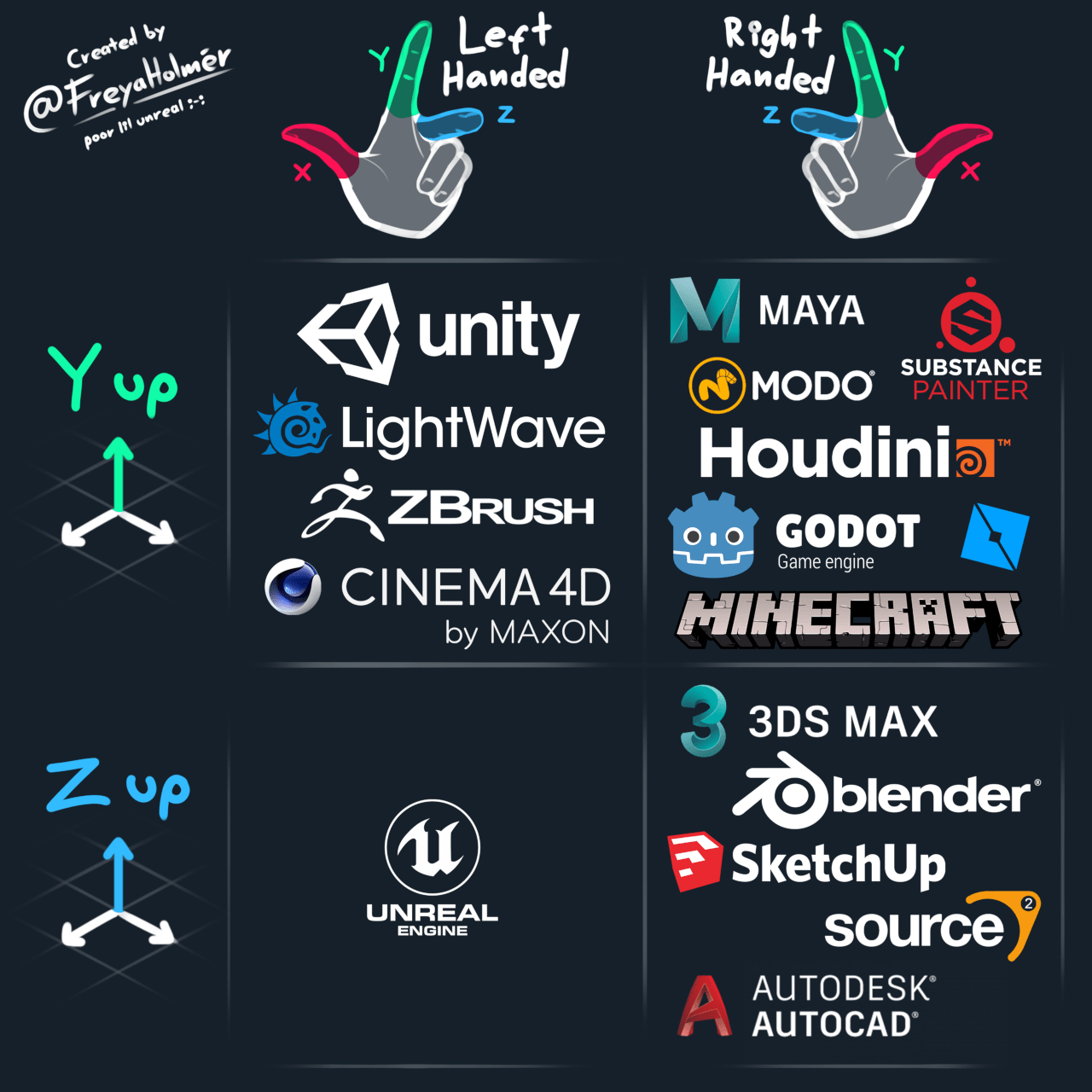
Vector rotations
-
Rotate 90º clockwise:
new_vector = Vector2(y, -x). -
Rotate 90º counterclockwise:
new_vector = Vector2(-y, x).
Mathematical manipulations
-
Returns a number multiple of the given 'steps', rounding to the nearest:
float snappedf(x : float, step : float) -
Rounds a float to the nearest x:
float roundf(x : float) -
Checks if float is approximately zero:
bool is_zero_approx(x : float) -
Checks if float is approximately equal to something:
bool is_equal_approx(a : float, b : float) -
Counts the number of decimal places:
int step_decimals(x : float) -
Clamp variable ranges:
vel.x = clamp(vel.x, -VEL_MAX, VEL_MAX)
Node3D: Rotations
-
(Rotates the "local transform") (?), around an axis defined in 'local coordinates':
rotate_object_local(_axis, _ang_rad) -
(Rotates the "local transform") (?), around an axis defined in 'parent coordinates (sometimes coinciding with global)':
rotate(_axis, _ang_rad)
rotate_x(_ang_rad)
rotate_y(_ang_rad)
rotate_z(_ang_rad) -
(Rotates the "global transform") (?), around an axis defined in 'global coordinates':
global_rotate(_axis, _ang_rad)
Node3D Transform
-
Build an identity transform, with vectors in default direction centered at the origin.
-
var xform = Transform()
-
-
Build a transform based on identity, with vectors in default direction.
-
var base = Basis() -
or
-
xform.basis = Basis()
-
-
Orthogonalize and normalize the Transform, ensuring axes are 90º apart and normalized, giving a scale of -1 or 1.
-
xform = xform.orthonormalized()
-
-
Rotate in global space:
-
xform = xform.rotated(_axis, _ang_rad)
-
-
Rotate in local/self space:
-
xform = xform.rotated_local(_axis, _ang_rad)
-
-
Translate in global space:
-
xform = xform.translated(_offset)
-
-
Translate in local/self space:
-
xform = xform.translated_local(_offset)
-
Node2D Rotations and Translations
rotation += (PI/16 + get_rotation()) *  delta
translate(Vector2(0, G/2))
CSG
Physics
Physics Process, Delta Time
Raycast
-
Can be done using the Raycast Node or via
.intersect_rayof the 'PhysicsServer' / 'PhysicsDirectSpaceState2D'. -
Calculations are only performed inside the 'physical frame', so use the
_physics_process()function to access their information. -
Raycast: Using Raycast via the PhysicsDirectSpaceState .
var space_state : PhysicsDirectSpaceState2D = get_world_2d().get_direct_space_state()
var query := PhysicsRayQueryParameters2D.create(Vector2(), Vector2(), masks)
Raycast: Climbing Stairs in a 2D Platformer .
Area2D
-
Layer :
-
"Which shirts the node wears".
-
In other words, the Area uses this if it needs to be "seen" by another Area.
-
-
Mask :
-
"Which shirts the node sees".
-
In other words, the Area uses this to identify which Areas it wants to "see".
-
-
Monitoring :
-
Roughly: If set to 'true', it will allow boolean 'true' Masks to be activated. If set to 'false', it will disable all the node's Masks.
-
-
Monitorable :
-
Roughly: If set to 'true', it will allow boolean 'true' Layers to be activated. If set to 'false', it will disable all the node's Layers.
-
-
Example: If Area_A and Area_B are intersecting while both areas are listening for entry and exit signals from the other area:
-
If Area_A quickly toggles its 'Layer':
-
Perception of Area_A: It will not perceive anything.
-
Perception of Area_B: It will stop detecting Area_A and then detect Area_A again. In other words, it will interpret it as an "enter" and "exit" of Area_A.
-
-
If Area_A quickly toggles its 'Mask':
-
Perception of Area_A: It will stop detecting Area_B and then detect Area_B again. In other words, it will interpret it as an "enter" and "exit" of Area_B.
-
Perception of Area_B: It will not perceive anything.
-
-
If Area_A quickly toggles 'Monitoring':
-
Perception of Area_A: It will stop detecting Area_B and then detect Area_B again. In other words, it will interpret it as an "enter" and "exit" of Area_B.
-
Perception of Area_B: It will stop detecting Area_A and then detect Area_A again. In other words, it will interpret it as an "enter" and "exit" of Area_A.
-
-
If Area_A quickly toggles 'Monitorable':
-
Perception of Area_A: It will not perceive anything.
-
Perception of Area_B: It will not perceive anything.
-
-
If Area_B quickly toggles its 'Layer':
-
Perception of Area_A: It will stop detecting Area_B and then detect Area_B again. In other words, it will interpret it as an "enter" and "exit" of Area_B.
-
Perception of Area_B: It will not perceive anything.
-
-
If Area_B quickly toggles its 'Mask':
-
Perception of Area_A: It will not perceive anything.
-
Perception of Area_B: It will stop detecting Area_A and then detect Area_A again. In other words, it will interpret it as an "enter" and "exit" of Area_A.
-
-
If Area_B quickly toggles 'Monitoring':
-
Perception of Area_A: It will stop detecting Area_B and then detect Area_B again. In other words, it will interpret it as an "enter" and "exit" of Area_B.
-
Perception of Area_B: It will stop detecting Area_A and then detect Area_A again. In other words, it will interpret it as an "enter" and "exit" of Area_A.
-
-
If Area_B quickly toggles 'Monitorable':
-
Perception of Area_A: It will not perceive anything.
-
Perception of Area_B: It will not perceive anything.
-
-
-
'area_shape' and 'body_shape' signals:
-
These signals are useful in cases where the Area2D has multiple collision shapes, for example an enemy with many contact points spread across its body.
-
These signals will return: the RID (Resource ID), the Area2D itself, 'area_shape_index' and 'local_shape_index'. All this information is used to better detect which shape was collided within the Area2D.
-
Skeleton, Bones, Joints
-
Using Skeleton2D with Polygon2D to create deformations in sprites .
-
Creating a Rig without Skeleton2D or Bone2D, only using the Create Bone option of Sprite2D.-
It is a very strange technique.
-
I much prefer using Skeleton2D and Polygon2D, because it is much more visual.
-
Apparently it supports IK, but that seems very odd to me. I did not like the technique.
-
-
Using a 'Bone' as Root Motion to create a more realistic "physical" animation .
-
The video is absolutely longer than it should be. For most of the time he is doing things unrelated to the topic, like creating character controllers and camera controllers.
-
From what was shown in the video, a character's walk speed can be "synchronized" with the walking animation, giving the impression of a more realistic / physical animation.
-
This should be set first in Blender, perhaps using an addon that creates a useful Bone to be used as root motion.
-
Apparently, setting up a 'root bone' in Blender is important so the character does not become 'wabbly' inside Godot.
-
IK
-
Forward Kinematics and Inverse Kinematics in 2D .
-
[Godot 4.3] IK is inside Skeleton2D, in the Modifications section.
-
-
Improving Inverse Kinematics using the 'Souperior Skeleton Modifications' addon .
-
Motivation for using the addon:
-
When flipping the character using Skeleton2D's Skeleton Modifications, the constraints did not respect that flip and produced an undesired result.
-
IK for "UpperBody" and "LowerBody" in a more simplified way.
-
-
{0:58 -> 8:50}
-
Conversion from the previous method to the new method is done, only to solve the IK problems when flipping the character.
-
-
{13:20 -> 14:40}
-
Demonstration of the character flip after the change.
-
-
The rest of the video is skippable.
-
SpringArm
-
Moves all child Nodes into the region corresponding to the SpringArm, regardless of where they are. One way to imagine the SpringArm is as a "train track", where its children are the "trains" and they can only move along the track. The advantage of the SpringArm is collision detection with the node's Shape, so it adapts to collisions and moves all its children "forward" from the collision, i.e., moves them closer to the SpringArm origin.
-
About the Shape: I don't know how it works, because the Shape is not visible to me.
-
Ragdoll
Soft-Body
Demos
Render
Color
Modular / change Node color (
modulate
and
Color8()
)
-
Color using RGB:
$Player.modulate = Color8(1530, 964, 367, 255)
$Player.modulate = Color8(255, 255, 255, 255) -
Color using RAW values (same as above):
$Player.modulate = Color8(6, 3.78, 1.44, 1)
YSort and Ordering
-
The YSort option can be enabled in the Ordering tab of any CanvasItem. When enabled, it will sort all the children of that node with YSort, but the node itself will not be sorted.
For tilemaps
-
In the case of Tilemaps, I noticed that you must enable both the Ordering option on the CanvasItem and the 'YSort Enabled' option in the Tilemap's 'Layers' section. If you fail to enable one of these options, YSort will not work as intended.
Tilemap
Animation/Columns of the TileSet
-
"you don't need to set the column value if your tiles are all in a row. The column value determines on how many columns your animation has if you need to go one line down at some point. For example, setting it to 1 means your tiles are laid out vertically, and setting it to two means you have two tiles per row, but you can have more than 2 frames, as the next frames will simply end up in another row. If the value is zero, then it considers tiles in a single, endless row."
Instantiations vs TileMap
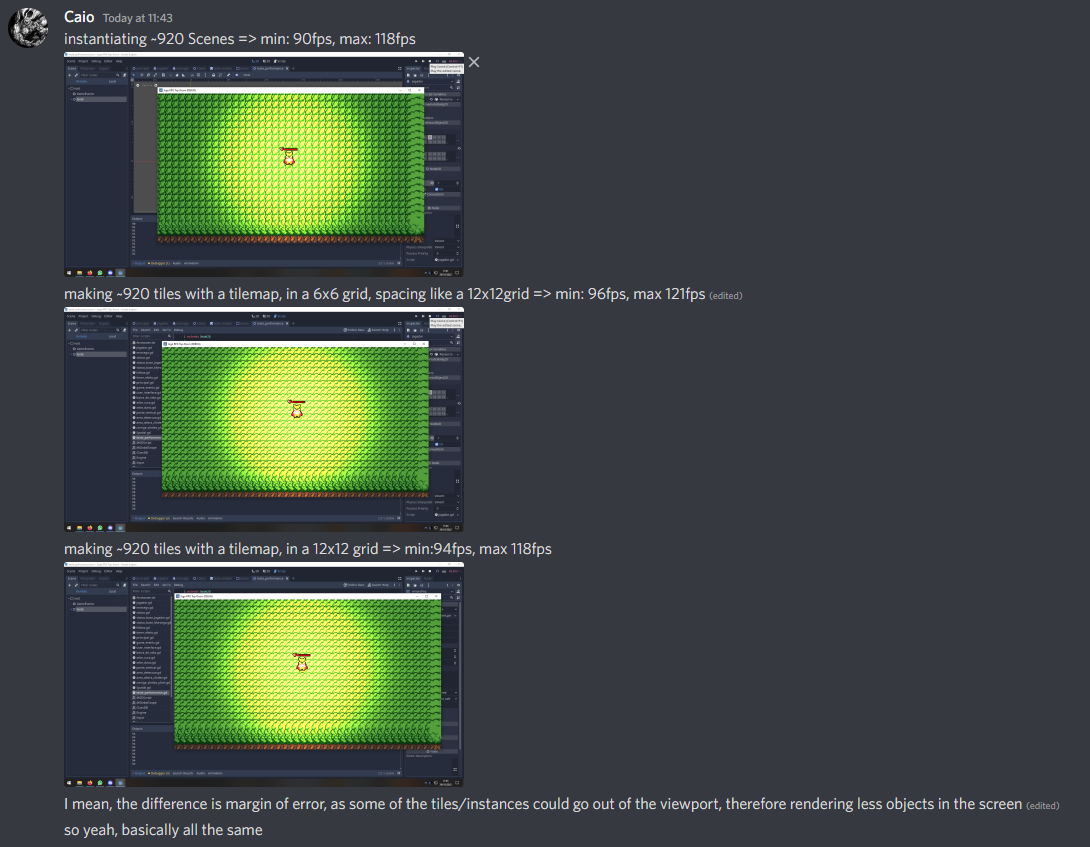
In Code
-
Change
PhysicsLayer_LayerandPhysicsLayer_Mask:
var INT_BIT_VALUE : int = 7  ## Corresponds to the total Bitwise layer value. Value 7 symbolizes that Layers {1,2,3} will be active.
my_tile_map.get_tileset().set_physics_layer_collision_layer(layer, INT_BIT_VALUE)
Parallax
Viewport, Camera, Screen
-
The purpose of a viewport is to show what is happening with the viewport's children, like a "video" or like an "image".
-
My understanding is that:
-
A
Viewportis a "window" that renders things from the world (world_2d), without necessarily showing those things to the player, unless they choose to display that Viewport on their screen;Camera2Donly changes which segment of the world (world_2d) will be shown to the player through the selected Viewport. -
Each Viewport can have multiple Camera2Ds, while necessarily each
Viewportcan only have 1Camera2Dset as 'Current' at a time. -
I don't know what belongs to '
world_2d', or even what 'world_2d' is. -
To work, the Viewport must have a defined size, and it may also require a
ViewportContainernode to see its content. -
ViewportTextureis a texture used in a Sprite that shows the image obtained from the selectedViewport. This allows seeing the image of a 'secondary'Viewportinside a 'main'Viewport.
-
-
Window: Tip to get a 'Pixel-look' for PixelArt games {2:57 -> 3:50} .
-
SubViewport: Place a 3D object in a 2D scene .
-
It is not necessary to script constant texture updates for the Sprite2D, just use the Subviewport as the Sprite2D texture in the inspector.
-
The only thing that must be changed is to enable the Transparent Background option on the Subviewport.
-
Note: I had issues with the WorldEnv Default of the 3D scene, so I had to override the World3D in the Subviewport.
-
-
Camera: Move an object based on the camera position, but in a segmented way .
-
Viewport .
-
Viewport: Split Screen (ugly solution for the 'BUG' above) .
VisibleOnScreenNotifier2D and VisibleOnScreenEnabler2D
-
Used to check if something is being shown on screen.
-
I saw both nodes useful to improve game performance by toggling visibility of nodes outside the screen, as shown in the video: CerbereGames video .
Particles and effects
Decal
-
Decal .
Forced Low-resolution
-
Walkthrough: Dungeon Environment .
-
The video is quite rushed and with a tired voice, but you can learn a lot.
-
Uses Laighter, Blender and Photoshop / Krita.
-
-
Walkthrough: Forest Environment with Campfire .
-
The video is quite rushed and with a tired voice, but you can learn a lot.
-
Uses Laighter, Blender and Photoshop / Krita.
-
Render: Illumination
World Environment
-
WorldEnvironment: 3D Lighting Setup .
-
In Godot 4 it is no longer possible to change the color of the 'Projected Shadow' in 'DirectionalLight'.
-
-
Lighting Setup: WorldEnvironment + DirectionalLight :
-
Sky:
-
'PanoramaSkyMaterial':
-
As objects are lit by the Sky indiscriminately, having a dark 'ground' to symbolize the floor is useful to make the underside of objects darker. However, if the character reaches a very high altitude, they may be able to see the ground on the horizon. If that happens, the HDRI can be edited in Photoshop, requiring some adjustment in 'AmbientLight' to counterbalance the loss of contrast in shadows.
-
-
'ProceduralSkyMaterial':
-
'Sun':
-
The 'DirectionalLight3D' node controls the Sun's 'latitude' and 'longitude' by its rotation angle in the scene.
-
'AngleMax':
-
Affects the size of all Suns in the scene.
-
Increasing the Sun size can affect the brightness of objects in the scene.
-
-
-
-
-
ToneMap:
-
"Transformation from 'linear colorspace' to 'sRGB colorspace'".
-
Exposure:
-
Affects everything in the world and the Sky itself, mostly affecting the bright parts, that is, it does not affect shadows that much. However, it is mostly used to calibrate the level of detail and brightness of the Sky.
-
-
White:
-
Affects a bit of the entire exposure, but mostly the 'upper end of the exposure range'.
-
-
-
Ambient Light:
-
Considered as the "Fill Light" or "secondary light".
-
Can be used to calibrate the color of 'Projected Shadows and Self-shadows' and everything else, mostly affecting the shadows, without affecting the Sky.
-
Color:
-
Color of the light.
-
-
Energy:
-
Affects the 'energy' of the light, making the 'Projected Shadows and Self-shadows' weaker or stronger.
-
-
Sky Contribution:
-
Percentage of the 'Sky' contribution to the 'AmbientLight'.
-
Reducing 'Sky Contribution' makes the AmbientLight's light stand out, so if the slider is zeroed, the 'Sky' will have no contribution.
-
-
-
DirectionalLight:
-
~Considered the "primary light".
-
Can be used to calibrate the color of everything except the shadows, without affecting the Sky; this implies using 'Ambient Light' to calibrate only the shadows while the 'DirectionalLight' handles the rest.
-
Care should be taken with the amount of color put into the DirectionalLight, since it easily becomes oversaturated.
-
It is useful to align the DirectionalLight direction with the "sun" direction in the Sky.
-
-
Global Illumination
-
*Note:
-
There is a folder in [Attachments/Global Illumination] with comparison photos.
-
-
Global Illumination: Introduction and technique comparison .
-
Global Illumination: LightmapGI .
-
You must select the meshes and create a UV2 for each; if not done, the mesh will be ignored in the bake, receiving no light or shadow.
-
The docs explain the following options:
-
Mark the 'Light Baking -> Static Lightmaps' option when importing the Mesh; Godot recommends this.
-
[4.3-dev5] This does nothing for an Inherited Scene...
-
-
'Unwrap UV2 for Lightmap/AO' when selecting the Mesh.
-
Via Blender, by generating an extra UV; Godot does not recommend this.
-
-
Note: do not ignore
.unwrap_cachefiles in git.
-
-
Does not update at runtime, as it is completely static.
-
Does not bake reflections, so LightmapGI is usually used together with ReflectionProbe for better quality.
-
Has fewer light bleeding issues compared to VoxelGI and SDFGI.
-
It is the oldest and slowest baking technique but gives the best quality and performance if the scene is fully static.
-
Also, both options provide the best mobile and old PC compatibility.
-
-
The difference between Medium and High is extremely subtle, almost imperceptible.
-
-
Global Illumination: ReflectionProbe .
-
Gives a very good effect. Works well when combined with LightmapGI.
-
"To get reasonably accurate reflections, you should generally have one ReflectionProbe node per room (sometimes more for large rooms)."
-
"This essentially acts as local ambient lighting."
-
Can be real-time if 'Update Mode -> Always' is enabled.
-
-
Global Illumination: VoxelGI .
-
Only bakes Indirect Light, meaning it does not produce Light or Shadow.
-
Did not work on 'plane' meshes, so I had to convert the 'plane' into a 'box'.
-
The options inside Data were useful to calibrate the final result.
-
In general, I did not like the result much, but adjusting Subdivisions and Propagation helped. Still, LightmapGI + Reflection Probes were superior.
-
-
Global Illumination: Creating a Fake Global Illumination .
-
Based on duplicating the light, rotating it, and reducing its "strength".
-
Can be done with DirectionalLight or OmniLight.
-
I tested it with DirectionalLight and it looked good.
-
Only makes sense if not using another GI technique.
-
Light Equation
shader_type spatial;

void light() {
    // light we wish to accumulate
    DIFFUSE_LIGHT += ALBEDO * ATTENUATION * LIGHT_COLOR * max(dot(LIGHT,NORMAL), 0.0);

    // assign the result
    SPECULAR_LIGHT = round(DIFFUSE_LIGHT*16.0 - 0.5)/16.0; // posterizes the final color
    //SPECULAR_LIGHT = DIFFUSE_LIGHT; // do nothing to the result

    // cancel all contribution of the diffuse_light variable
    SPECULAR_LIGHT -= ALBEDO * DIFFUSE_LIGHT;
}
-
Diffuse Lambert:
-
This is just my interpretation at the time.
-
float NdotL = min(1.0, dot(NORMAL, LIGHT));
float cNdotL = max(NdotL, 0.0);
float diffuse_brdf_NL = cNdotL / PI; // For 'lambert'
DIFFUSE_LIGHT += LIGHT_COLOR * ATTENUATION * diffuse_brdf_NL;
Light2D
-
About Z_Index and Layer:
-
As far as I understand, the light and the shadow generated by Light2D and LightOccluder2D do not care about Z_Index, only Layer and Mask. This suggests that both are not "objects", but rather "Areas" or "Drawings".
-
However, both can interact with CanvasLayer, despite not interacting with Z_Index within the Canvas.
-
-
' Range ItemCull_Mask':
-
The "Range" mask determines which layer receives light.
-
-
' Shadow ItemCull_Mask':
-
The "Shadow" mask determines which layer receives shadow.
-
Light3D
-
"'Light3D/Cull Mask' is the layers which the light affects, 'VisualInstance/Layers' affects which cameras can see this light."
Shadows
-
Lighting: How to make shadows (behind the Sprite) in 2D (4.x) .
-
Lighting: How to make shadows (behind the Sprite) in 2D (3.x) .
-
Lighting: Light2D and Day&Night Cycle (bad solution for self-shadowing) .
-
Lighting: Examples of Light and Shadow + Normal Maps with Laigter .
-
Lighting: Show an object only in Light; tips to create shadows using tilemap .
-
The video is very nice and simple.
-
Light Only is used to show the enemy only in shadows.
-
A generic tilemap with occluder is used to quickly generate shadows; this is very cool and useful.
-
LightOccluder2D
-
'Closed':
-
I don't see any use in changing this; I did not find an effect that benefits from this property.
-
-
'Cull Mode':
-
'Clockwise', 'CounterClockwise'. If you are making a Platformer2D or FullTopDown2D style game, 'Cull Mode' can be very useful to make shadows that interact correctly with the object.
-
-
'SDF Collision':
-
"If enabled, the occluder will be part of a real-time generated 'signed distance field' that can be used in custom shaders. When not using custom shaders that read from this SDF, enabling this makes no visual difference and has no performance cost, so this is enabled by default for convenience."
-
-
'OccluderLight_Mask':
-
"This is used in tandem with PointLight2D and DirectionalLight2D's 'Shadow > Item Cull Mask' property to control which objects cast shadows for each light. This can be used to prevent specific objects from casting shadows."
-
Making Shadows appear behind the Sprite
-
Godot documentation (Does not work):
-
LightOccluder2Ds follows the usual 2D drawing order. This is important for 2D lighting, as this is how you control whether the occluder should occlude the sprite itself or not.
-
If the LightOccluder2D node is a 'sibling' of the sprite, the occluder will occlude the sprite itself if it's placed 'below' the sprite in the scene tree. If the LightOccluder2D node is a 'child' of the sprite, the occluder will occlude the sprite itself if 'Show Behind Parent' is disabled on the LightOccluder2D node (which is the default).
-
(2024-10-26) I tested changing the position of the LightOccluder relative to the Sprite, testing using and not using Show Behind Parent, etc. It did not work.
-
-
Solution I use:
-
Separate the '
Light_Masks' and 'ItemCull_Masks' to be different for the Shadows and for the object's lighting, causing the Shadow not to be "drawn" in front of the sprite. -
(2024-10-26) I did not understand this explanation. I have to test.
-
OccluderInstance3D
-
An
Occluder'of opaque objects of sibling Nodes can be created by clicking 'Bake Occluder', or an Occluder can be created manually. -
The
Occluderwill only work ifOcclusionCullingis enabled in ProjectSettings. -
~When enabled, the Occluder will block the visualization of the object under certain conditions. The effect reminded me of Minecraft chunk loading.
Animation
Tween
AnimationPlayer Node vs Tweens
-
AnimationPlayer takes KeyFrames and transitions between them using a manually editable Easing; it's unclear if predefined ones can be used via Script. Tweens does the same but allows for custom (non-predefined) Easing.
-
In summary: both interpolate values using an Easing curve, while
AnimationPlayeris easier and more intuitive, Tweens allows better control when the final value is unknown.
Animated Sprite
Importing animations from a .gltf / .glb file
Using the animations in an AnimationPlayer different from the one generated in the file
-
(Safe!) Using a script on the Mesh to manage the internal
AnimationPlayer:-
Create a script on the Mesh that has a function for each desired animation.
-
Play the Mesh's animations by calling those functions inside the Entity's AnimationPlayer.
-
This causes some debugging inconveniences due to the visual loss of where the animation ends and what its "critical points" are.
-
If you want to loop animations, just call the Mesh function once and let the animation loop naturally inside the Mesh's AnimationPlayer.
-
-
Problem:
-
This causes a blending problem between animations because the
AnimationTreewill not have information about what is being animated, causing the transition to be completely discrete. -
As a consequence, transitions inside a BlendSpace2D are not done correctly if that BlendSpace2D's
BlendModeis set to continuous.
-
-
Solution:
-
You must set the BlendMode to Discrete for the BlendSpace2D so the called functions will work.
-
You can set a 'default_blend_time' on the mesh's AnimationPlayer so animations blend during the transition in the AnimationPlayer. This can be done via:
-
'default_blend_time', affecting all animations.
-
'set_blend_time', affecting two specified animations.
-
The Animation->Edit Transitions interface of the
AnimationPlayer.
-
-
-
-
(Unsafe!) Using Animation Libraries and handling the import:
-
> Extract the animations to a separate file.
-
> Create an Animation Library and put the animations inside.
-
~Deal with the problem of a meaningless RootNode..
-
After attempts, I chose the only option that made sense: keep the RootNode in the Mesh while all other animations get a weird path.
-
Using the 'AnimationPlayerRefactor' Addon is very nice. It can solve the pathing problem, making it possible to keep the Root Node as the entity's CharacterBody.
-
However , re-importing the model breaks the model's animation pathing again because the old pathing is overwritten by the new pathing from the export.
-
Because of that, unfortunately, even with the addon this is still bad and unsafe.
-
-
-
Changing the animations that come with the file, using Godot
-
By default, animations cannot be edited in any way, this includes:
-
Trying to modify the AnimationPlayer of an Inherited Scene from the file.
-
Marking 'Editable Children' or 'Make Unique' on an instance of the Inherited Scene or an instance of the file.
-
-
(Unsafe) Editing the original tracks of a file animation:
-
I choose not to do this, as it is strange and inconsistent .
-
> Extract the animations to a separate file.
-
Godot uses this to save the new tracks that will be added.
-
-
> Create an Animation Library and put the animations inside.
-
Mark 'Make Unique' on the Animation Library via one of these options:
-
Click 'Make Unique' in the Libraries tab of the AnimationMixer of the AnimationPlayer/AnimationTree.
-
Click the Disk icon on each animation and select 'Make Unique' inside the AnimationPlayer's 'Manage Animations' tab.
-
-
After doing the above steps, you will be able to:
-
Create new tracks.
-
Remove tracks.
-
Rename tracks.
-
-
Even after these steps, any re-import of the file or 'Export as .glTF / .glb' in Blender will reset the animations to the file version.
-
This indicates that the animations are still linked to the file. I find this odd considering the AniLibrary was made unique.
-
-
-
(Unsafe) Adding new tracks to a file animation:
-
In the file import tab, enable 'Keep Custom Tracks' for animations you want to add new tracks to.
-
This causes the new tracks to remain intact after re-import or 'Export as .glTF / .glb' in Blender. The original tracks coming from Blender will be reset.
-
Although this option works, it seems ~unsafe and 'prone to trouble'.
-
-
Utils
-
Extract the animation to a separate file:
-
The animation should be saved in a separate .res or .tres file using one of the options in the file's import tab:
-
'Actions -> Set Animations Save Paths'.
-
'Save to File' when clicking the animation.
-
Ensure the 'Loop Mode' is set correctly.
-
Be careful not to use 'Skip Import' on the AnimationPlayer, as this can interfere with re-importing animations when re-importing the file.
-
-
Create an Animation Library and put animations inside:
-
*This is a very stupid process due to Godot's poor implementation of Animation Libraries.
-
Create an AnimationPlayer.
-
Go to the AnimationPlayer's 'Manage Animations' tab and click 'New Library'.
-
After the AnimationLibrary is created, it must be saved to disk by clicking the Disk icon on the AnimationLibrary name in the AnimationPlayer's 'Manage Animations' tab.
-
Regardless of saving it as
.tresor.resthe Animation Library cannot be opened in the inspector for viewing. The only way to access and modify it is via the 'Manage Animations' tab of an AnimationPlayer.
-
-
AnimationMixer
AnimationPlayer
-
File and Resource:
-
Clicking 'Duplicate' in the animation tab duplicates the animation with a new name. Doing this will make the Animation have a path pointing to { scene_path .tscn: id }, regardless of whether the Animation was a SubResource of the Scene or if it had its own path { resource_path .tres}.
-
Clicking 'Copy' and 'Paste' performs exactly the same process as 'Duplicate', except that this time the animation name will be the 'Name' variable of the Resource.
-
Clicking 'Copy' and 'Paste as Reference' results differently from 'Duplicate', since both animations will have the same path. If the animation has a path like { scene_path .tscn: id } or { resource_path .tres}, its 'paste by reference' will have the same path (and ID) as the original. If you use this option, I found it complicated to unlink the pathing between the copy and the original, since resetting their paths still causes them to share the same path.
-
Saving the entire Scene 'AnimationPlayer' with a {.tscn} file will save all animations inside the AnimationPlayer. In other words, this method differs from the usual 'Save Animations' method, since all animations can be saved inside a single file. However, animations may not work if you place the Scene inside a SceneTree with different paths. You will need to recalibrate the tracks' paths manually.
-
-
Tracks:
-
Interpolation and Easing:
-
Interpolation can be changed on the right side of the Track, between 'Nearest', 'Linear' and 'Cubic'.
-
Easing can be changed by selecting a frame on the Track and editing its easing.
-
You can right-click on the curve to select a preset.
-
-
-
Bezier Curves:
-
This Blender video helps visualize them: Blender: Understanding Bezier Curves and the Graph Editor
-
To create Bezier Curves in the AniPlayer, click '+ Add Track' and 'Bezier Curve'.
-
To edit the Curve, select the 'Toggle between bezier curve editor and track editor' icon at the bottom right of the interface.
-
During editing, you can select a frame and change the Handle Type of the frame, as well as fine-tune the Handle position.
-
-
-
Tools:
-
When manipulating an animation in the AnimationPlayer, it is interesting to set the 'Snap Option' to 60 FPS (or the game's FrameRate), which results in a pseudo-frame-by-frame view of the animation.
-
The 'Onion Skin' tool enables viewing 'past and future' frames at the same time, allowing better visualization of the motion. This did not work well for 'Discrete' animations and low frame rate 2D animations.
-
The tools to the right of 'Onion Skin': 'Directions', 'Depth', 'Differences Only', 'Force White Modulate' and 'Include Gizmos (3D)', seem to be responsible for fine-tuning the 'Onion Skin' tool.
-
-
The 'Group Track by Node' tool at the bottom left of the Snap options groups tracks based on their origin. This allows moving tracks via the Inspector , which is great. Another way to get this functionality would be editing the .tres file with text editors, but that process is sometimes very unresponsive.
-
-
Behaviors:
-
Apparently, AniPlayer and AniTree can play simultaneously. For example, setting AnimationPlayer to AutoLoad will play it independently of whichever AniTree animation is active.
-
-
[old] Dissatisfactions:
-
(BUG) Disabling a track in an animation does absolutely nothing if the animation is started from an AniTree; the track still works anyway. Observed in Godot 3.5.1, but this has happened since ~Feb/2019.
-
(BUG) If using an AniPlayer as its OWN SCENE, making any change to an Animation or property of the AniPlayer will not be saved or applied in the game. There are many situations where nothing fixes this bug, and if you restart Godot, all changes are lost and reverted. I believe this bug is caused by transforming an AniPlayer into a scene, since all animations inside it have their 'property path' incorrect, which can cause problems saving the scene. Therefore: avoid using AniPlayer scenes, I suppose.
-
(Possible BUG) I changed settings of a {.tscn} file of an AniPlayer containing many animations, but there was a lot of inconsistency during the import of changes from VSCode to Godot, making it very frustrating to try to change this node this way. Note that ALL changes and import processes were done correctly. I tried resetting the scene, restarting the project and Godot, but there was still much frustration. In the end, if you want to make bulk changes in an AniPlayer, using the 'Copy Tracks' and 'Paste Tracks' tool may be one of the least frustrating solutions.
-
-
Notes: (2023-02-18) About the Player's AniPlayer animations:
-
All AniPlayer animations have their BlendMode set to Discrete.
-
Most animations use the Linear Curve, while some sprite animations use the Cubic Curve.
-
All animations use the Loop Wrap setting, that is, the default setting.
-
Only some animations have loop enabled, for example: Poison effects, Regeneration and Run movement. Idle and Switch movement animations do not loop.
-
-
Cautions :
-
Never make the AnimationPlayer the 'parent' of something you want to have its position updated. The node does not have a Transform property, so any movement it perceives will not be passed to its children.
-
AnimationTree
-
File and Resource:
-
Saving the AniTree's 'Tree Root' Resource will save the entire 'Animation Tree' configuration of the node; it will not save the animations themselves, since they are stored only inside the corresponding AnimationPlayer.
-
-
Transition Modes:
-
Switch Mode: from what I noticed, 'Immediate' transitions the animation as soon as a 'Travel' is requested. 'Sync' transitions the animation exactly like 'Immediate', but sends the 'Seek' property (animation frame) from the previous animation to the next one (the option behaved confusingly). 'AtEnd' transitions the animation when it finishes; however, it cannot exit loops without help from 'Auto_Advance'.
-
Auto_Advance: from what I noticed, when used with 'Immediate' this option makes the animation transition instantly to the next one. When used with 'AtEnd' the option makes the animation transition to the next as soon as the animation ends. "So what's the difference between 'Auto_Advance' and 'AtEnd'?" From what I observed, 'Auto_Advance' can force exiting looping animations, while 'AtEnd' alone cannot transition in that case.
-
-
Changing parameters:
-
If you want to change internal parameters of the AniTree's 'tree_root', it is important to use 'AniTree.tree_root' to access parameters inside the 'tree_root' AnimationBlendTree. If you want to access an AnimationNode inside the 'tree_root', you can use 'AniTree.tree_root.get_node(" animation_node_name ")'; 'tree_root' in this case is an AnimationNodeStateMachine.
-
If you want to change external parameters of the AniTree's 'tree_root', the process can be done via the AniTree itself without needing to access 'tree_root'. For this, the command 'aniTree.get(" parameter_path ")' stores a parameter value. However, '.get()' only creates a copy of the information in most cases, but when using an AnimationStateMachine together with AniTree.get("parameters/playback")', it is possible to change the AnimationStateMachinePlayback (I believe this works because 'playback' is a resource by itself). Therefore, in general, you will need to use 'aniTree.set(" parameter_path ", new_value )' to change a parameter's value; note that 'aniTree.get(" parameter_path ") = new_value ' will crash the game, as Godot sees this as an error.
-
-
Cautions :
-
Never make the AnimationTree the 'parent' of something you want to have its position updated. The node does not have a Transform property, so any movement it perceives will not be passed to its children.
-
AnimationTree: StateMachine
-
Observations:
-
The '.travel(..)' function acts like a 'queue', meaning the travel is only applied at the end of the frame. This implies that if several '.travel(..)' calls are made in sequence within the same frame, one will overwrite the other so that only the last one will actually travel.
-
-
Dissatisfactions:
-
The functions 'aniState.get_current_play_position()' and 'aniState.get_current_length()' interact strangely when using these commands to collect information that undergoes some kind of "Blend". From my experience, it is important to disable all Blends made in the BlendSpace2D of the StateMachine to avoid this behavior; although I don't know if that was the real cause of my dissatisfaction. I experimented changing the animation anchor point inside the BlendSpace2D and there was no difference. Therefore I believe the problem is related to the 'Blend Mode'.
-
(BUG) If using an AniPlayer as its OWN SCENE, updating a Transition in the StateMachine does not make the game update the changes. To make the change effective, you need to make a more significant update in the AniTree, for example: create a new Transition between Segments and delete that Transition; this will make the game update and apply the changes. There are many situations where nothing fixes this bug, and if you restart Godot, all changes are lost and reverted. The same problem occurs when using a Resource for the AniTree's 'Tree Root'. Strange.
-
-
Notes: (2023-02-18) About the Player AniTree's BlendSpaces2D:
-
I used 'Blendmode Interpolated' with 'Sync' enabled. Using these settings was the only combination that gave me the result I wanted: be able to change the BlendPosition while keeping the animation frame, without looping it.
-
After debugging these settings, I noticed there is no 'smooth transition' in the BlendPosition, so it can go from (-1,0) to (0,1) or from (0,1) to (1,0) in just 1 frame.
-
-
I always use 'PlayMode' on Travel, which makes the States play via a "path" instead of simply "teleporting".
-
-
Animation: Create an AnimationTree for a 3D character .
-
A 2D BlendSpace called IWR (Idle/Walk/Run) is used as Lobby.
-
-
Animation: Create a CharacterController and AnimationTree StateMachine .
AnimationTree: BlendTree
-
The 'Blend' effect contained in the nodes 'Blend2', 'Blend3' and 'OneShot' causes one animation OR the other to be played, but when switching to a second animation, the Blend effect remembers the position of the first animation so that when returning to the first one it continues from where it stopped.
-
The 'Add' effect contained in nodes 'Add2', 'Add3', and 'OneShot' allows multiple animations to play simultaneously, combining them in a 'Discrete' way (without mixing).
-
The 'OneShot' node has random issues of ending the animation 1 frame earlier than expected, which can cause problems if an action is assigned to the animation's last frame. This was the cause of the attack animations 'POW bug'. The workaround is to leave 1 empty frame at the end of the animation to avoid the issue affecting the expected outcome.
-
Changing blendtree parameters:
-
Scale and Transition:
var aniDuracaoCooldown : String = 'parameters/DuracaoCooldown/scale' var aniTransicao : String = 'parameters/Transition/transition_request' aniTree.set(aniTransicao, 'Cooldown') aniTree.set(aniDuracaoCooldown, 1.0) -
-
Animation: How to use AnimationTree BlendTree .
-
A 2D BlendSpace called IWR (Idle/Walk/Run) is used as Lobby.
-
-
AnimationTree: Using AniBlendTree filters to only play some animation tracks .
-
The tip is okay, nothing spectacular.
-
Navigation
Grid-based Movement
-
AStarGrid2D: Coordinate transformation equation depending on chosen projection .
-
Devlog about a turn-based grid combat game .
-
Quite interesting.
-
I found the OOP system well done.
-
-
Using a tilemap:
-
This creates coupling between the Tilemap and Entities, which I don't like.
-
It also makes things awkward if you want to use a background that is not tilemap-based.
-
Grid-based movement using tiles from a tilemap (1) .
-
The entity moves forward while the sprite teleports backward and is moved slowly forward.
-
This is useful to "reserve" a cell so there are no conflicts between entities trying to go to the same cell.
-
-
-
Grid-based movement using tiles in a tilemap (2) .
-
The entity moves forward while the sprite teleports backward and is moved slowly forward.
-
This is useful to "reserve" a cell so there are no conflicts between entities trying to go to the same cell.
-
-
The decoupling in this video is a bit better than the above video, by keeping tilemap-related code inside the Tilemap; the player only uses the Tilemap to get the new position information after movement.
-
At the same time, the scene structure is quite messy and requires all entities to be children of the Tilemap and creates a somewhat inflexible "actors" system.
-
-
-
Using snap on the grid:
Grid-based Navigation
Audio
-
Animate sound effects with an AnimationPlayer / Place sounds directly in the AnimationPlayer / Keep music between scene changes by making it an AutoLoad / Use Area2D for 2D spatial sound.
-
Showcase of AudioStreamSynchronized .
-
The Resource is used to blend between two audios, similar to FMod.
-
-
Trick to only play the walking sound on the correct AnimatedSprite frames .
-
Interesting and very simple.
-
An array is stored with the frame numbers where the character's foot touches the ground, so the sound only plays if the current frame is one of those.
-
-
Making a slider to change volume .
-
Two interesting things are mentioned:
-
Conversion of 'linear' values to 'db' and vice versa.
-
Access to the 'audio bus' via an
@export var bus_name : String, which is awkward since it's a string, but it works using the string for the AudioServer.
-
-
-
Creating 'global sounds' by instancing AudioStreamPlayers in the world, then queue_free() them .
-
I don't know if this makes much sense. It doesn't seem efficient. I just saved this option as a reminder that it exists.
-
UI
-
-
Very nice.
-
Input
-
-
"GUI events also travel up the scene tree but, since these events target specific Controls, only direct ancestors of the targeted Control node receive the event.".
-
Regarding Pickable Objects:
-
For reasons I don't understand, this implies that all control nodes directly above the node you want to detect as Pickable must be set to Ignore or Pass.
-
It is not necessary to set Ignore or Pass for other nodes, only those that are directly above the current one; that is, it is not necessary to set the node's "siblings".
-
-
-
-
Input: Create a Buffer for 'attack combos' with 'attack_points' .
Mouse
-
-
Great video.
-
{2:33}
-
At the end of the video he shows how to change the cursor depending on context, adding variations to the cursor.
-
-
About cursor scale problem:
-
"I pre-rendered the cursor at integer multiples of the base resolution (640x360 in my case) and then at runtime call "OS.window_size" to see what resolution the game is running at (works for both windowed and fullscreen despite the name) and then pick the cursor that is the closest multiple from the base resolution. Not perfect for screens with odd resolutions, but can cover the most common sizes since 640x360 is a perfect multiple of 720, 1080, 1440, and 4k".
-
-
Inventory
-
Without grid:
-
-
Creates a fairly complete inventory.
-
The video author explains poorly and is dull, but created okay systems.
-
I have some random criticisms, but I'm too lazy to explain.
-
-
-
Bad video, ted-talk style, with a lot of useless content and a confusing system.
-
-
Grid:
-
-
It's a very slow tutorial and there is no initial clarification about what is being done. The rest of the video is better.
-
Watch the video from {51:00}.
-
System:
-
Grid / "Slot":
-
The grid visuals are separated from the grid functionality. "Slots" are not used.
-
The 'visual grid' is defined as a stretched tile texture with 'texture repeat' enabled; so it's just a background texture.
-
The 'logical grid' is defined as segmentation of the texture region, using a 'cell_size'.
-
-
Items:
-
Item placement is done by placing an "item" in an arbitrary region of space within the region defined by the grid. Everything is loose, but it tries to maintain the pseudo-segmentation generated by 'cell_size'.
-
{23:30}
-
Item definition.
-
-
-
"scans the grid and marks all slots as occupied".
-
The item's "origin" is stored, so when clicking an occupied tile, the 'grab' is done from that 'origin'.
-
-
-
-
It's a very long video with questionable dynamic-typed code.
-
System:
-
The grid is built by instancing many "Slot" scenes.
-
A Slot is defined as a Control.
-
Each item is defined as a Node2D, which is odd.
-
"scans the grid and marks all slots as occupied".
-
-
The video and method are very questionable.
-
-
-
Does not support:
-
Rotation.
-
Placing an item outside the predefined grid.
-
Scroll.
-
Swap items by clicking on top of an item exists.
-
-
System:
-
Very simple.
-
-
Not recommended, because it's not in Godot and lacks clarity.
-
-
-
Old video with poor Godot programming.
-
System:
-
The grid is built using a procedural rectangle, disconnected from visuals (as I recall).
-
{16:00} "scans the grid and marks all slots as occupied".
-
-
-
-
An "inventory manager" is created without using Godot's drag-and-drop functions.
-
Uses very poor code.
-
The video is completely irrelevant and very long.
-
-
-
Just a devlog with no explanation. The shown code is terribly disorganized and very poor.
-
-
-
Just a showcase. The system looks flawed.
-
-
-
Terrible video.
-
-
Inspirations:
-
Drag
-
It is not possible to use the function
set_drag_preview()if a "drag" defined by Godot is not being performed.-
In the example below, the server asks the client to perform a drag, but this cannot be executed by the client since it is not performing the native Godot drag.
@rpc func _request_set_preview(slot_com_item_path : NodePath) -> void: var slot_com_item : Slot = get_node(slot_com_item_path) if not slot_com_item: return var preview : ItemPreview = _PREVIEW_SCENE.instantiate() preview.set_textura(slot_com_item.get_item().textura, slot_com_item.get_item().tamanho) set_drag_preview(preview) -
-
Drag: Built-in 'Drag and Drop' functions .
-
Godot 4.x: _get_drag_data(), _can_drop_data(), _drop_data().
-
-
Drag: Differences between drag methods using Control Nodes and 2D Nodes .
-
For Control Nodes use the virtual functions '_get_drag_data()', etc.
-
For 2D Nodes ~'something manual is implemented'.
-
Data Management
Saving
Scene changes
Save
Change Scenes of a SceneTree (
change_scene_to_file()
and
change_scene_to_packed()
)
-
get_tree().change_scene_to_file("res://_path_.tscn") -
get_tree().change_scene_to_packed(preload("res://_path_.tscn"))
Resources
-
*Global Cautions:
-
'Make Sub-Resources Unique':
-
Be very careful NOT to mark this option in the upper right corner of the Inspector. This option makes ALL resources of the Scene unique, including Scripts, Resources, and any other Scene property. This is dangerous because: making Scripts unique means any change to the original script WILL NOT be propagated to the Unique Script, making it very complex to debug and apply modifications in Scenes that had this option marked; it makes the Scene "rogue without trace", simplistically. This property may have use in special cases, but use it with caution. If you want to check whether a Scene is under the effect of this property, you can right-click it in the Scenes tab and inspect 'Sub-Resources'; by clicking each Sub-Resource you can check if they have the expected pathing, or if they have a script path like {_scene_path_.tscn:_id}.
-
-
-
How to create a new Resource:
-
Click the "File+" icon at the top of the Inspector, or right-click somewhere in the FileSystem tab and choose 'New Resource'.
-
Choose from existing resource types, or choose to create an empty resource.
-
After this, the resource will appear in the Inspector, but it has not been saved. To save it click the Disk icon at the top of the Inspector and then 'Save As'. Once done, the resource is created and saved in the FileSystem.
-
If you want a Resource to inherit from a script, the script must use {extends Resource}, otherwise the game will crash indicating this type of inheritance is required.
-
If you use a script with a 'class_name', its name can be found during step [2], shortening the step of adding the script to the resource manually after step [3]. Giving a 'class_name' is optional and not required at any point during resource creation and use.
-
-
Local To Scene:
-
If the Original Scene already has the Resource:
-
Enabling this option and instancing the Scene in another SceneTree will make the Resources inside the new Scene have their Path automatically changed to the type { scene-tree-path.tscn::unique-id }. If you instance the Scene multiple times, manually via the Inspector or by dragging it from the FileSystem, each instance will have a different ID.
-
Disabling this option and instancing the Scene in another SceneTree will make the Resource inside the new Scene keep the same Path as the 'Original Scene Resource', which can be either { resource-path.tres } or { scene-path.tscn:id }, depending on how the Resource was defined inside the Original Scene.
-
-
If the Original Scene does not contain the Resource, only the empty export slot:
-
In this case, checking 'Local to Scene' will have no effect, since there is no instance of the Resource being made.
-
-
-
Resetting the Path:
-
If the Resource Path is of the type { resource-path.tres } and you reset its path in the inspector, Godot will assign a new path of the type { scene-path::id } or { scene-tree-path.tscn::id }, depending on how the Resource was defined. If you want to make the Resource global again, setting the path back to { resource-path.tres } will not work; you must re-export the Resource.
-
-
Tools and Interactions:
-
If the Resource is loaded with 'New resource-name ', it will generate a new instance of the Resource that will have a Path of the type { scene-path::unique-id } or { scene-tree-path.tscn::unique-id }.
-
If the Resource is loaded with 'Load', 'QuickLoad' or dragged from the FileSystem, it will generate an instance with a Path of the type { resource-path.tres }.
-
If you use the 'Make Unique' option, it will "force" the Resource to be unique, making its Path be of the type { scene-path::unique-id } or { scene-tree-path.tscn::unique-id }, depending on how the Resource was defined.
-
If you use the 'Copy' and 'Paste' option from the Resource tab, the copy will have the same Path as the original, making them linked. The Path will be of the type { scene-path::id } or { scene-tree-path.tscn::id }, depending on how the Resource was defined. You can also get this result by resetting both Resources' Paths simultaneously and then clicking save, causing Godot to understand that they should share the same Path; however, this is volatile and should be avoided.
-
If you use 'Duplicate' in the Resource tab, it will have exactly the same effect as the 'Copy' and 'Paste' option.
-
-
Summary of how to create a unique instance of a Scene in a SceneTree:
-
If the Original Scene already has the Resource:
-
It is very useful to put the Resource inside the Scene and keep the Local To Scene option always active so that new instances in the SceneTree have different Paths within the Scene, of the type { scene_path :: unique_id }. If I want to disable 'Local To Scene' and still make each Scene unique in the SceneTree, it is possible to mark 'Make Unique' on the Scene's Resource, although this is redundant since 'Local To Scene' already handles it automatically.
-
Best practices: in the above case, it is interesting to never change the Resource values inside the Original Scene, but rather in its instances in the SceneTree. This makes parameter changes easier to understand during instancing/modification of the Resource.
-
-
If the Original Scene does not contain the Resource, only the empty export slot:
-
In this case, marking 'Local to Scene' will have no effect, since there is no new instance of the Resource being made. Therefore you must 'Load', 'Quick Load' or drag the Resource from the FileSystem to get the Resource. After that, mark 'Make Unique' or reset the Path in the inspector so Godot considers the .tres file path is not the correct path and assigns a new local Path.
-
-
-
FileSystem Directory:
-
'Local to Scene', 'Make Unique' and 'Path' seem to add complexity when it comes to directory storage, but it's actually simple:
-
.
-
-
We note that when making a Resource Local to Scene or Make Unique, dependencies between the "Original Resource" and its 'unique version' are not created. As a consequence, for example, you can put a Resource in a Scene, make it unique via Make Unique and then delete it from the FileSystem without problems, since the only dependency of this new Resource version is the Script. Visually, when making 'unique versions' of a Resource, you always create "siblings" of that Resource, never "children".
-
As a consequence, we can associate the Resource Path with the FileSystem path:
-
If the Path is { resource-path.tres }, then obviously there is a separate Resource file. You can be sure this Resource points directly to a Script.
-
If the Path is { scene-path::id }, then there is no separate Resource file, since the Resource is saved in the Scene. You can be sure this "Scene Resource" (i.e., SubResource) points directly to a Script, without any dependency on other Resources, even if it originated from one.
-
-
That said, we can also analyze cases where it is interesting to use a .tres file to store a Resource:
-
If you want multiple Scenes to have their behavior linked.
-
If you want a "shortcut"/"Template" to facilitate assigning properties. In this case, the Resource is used in the Inspector and then made Make Unique. This allows the "Template" file to be deleted at any time since no Scene permanently depends on the "Template", it only used it as a "shortcut" when initially configuring the Resource properties.
-
This option has a "hidden advantage" that the Template's information is only updated if the Template is being used by a Scene in the Editor. Therefore, the advantage is that unintentional changes to the Resource script will not affect Template files until they are instantiated. This is the closest option to a 'backup of information' I can come up with when thinking about all the different ways to use a 'Resource in Scene' or a 'Resource as .tres'.
-
-
-
-
Errors due to missing files:
-
If the Resource's ".tres" file ceases to exist while the path is { resource-path.tres }, the Scene will open normally but the game will crash.
-
If the Resource's Script ceases to exist while the path is { resource-path.tres } or { scene-path::id }, the Scene will be corrupted and will not open, requiring editing the .tscn file with external text editors to fix the corruption.
-
-
You can use
var recurso = load("_resource-path.tres_")}inside the Script that wants access to the Resource if there are loading problems. -
Resource 'Name' property:
-
Completely optional, it just makes the Name appear in the Inspector.
-
Initially, I tried to follow some rules when using the Name to organize my Resources:
-
Templates do not have a name, since I want to identify them by the "_" prefix.
-
When using a Template and making it local with Make Unique, a Name is given to the Resource so it is easier to identify in the Scene and its Instances. Be careful to give the Name after making it unique, because if you forget, you will break rule [1].
-
When changing the Resource of an Instance in a SceneTree, it is encouraged to change the Resource Name, but this is only a suggestion since the Undo button already allows identifying that the Resource diverges from the Scene's Resource. There is no problem giving a new Name to the instanced Resource, since using Undo will revert the name to the one given in the Original Scene.
-
-
-
My mentality and plans for handling Resources:
-
I want Entities to have identical Resources initially, making them unique only if I decide so. In other words, I do not want to use Local to Scene on my Resources; I want them to be unique only via Make Unique.
-
Importing
Blender -> Godot
-
About:
-
Using suffixes to customize import .
-
About collision generation:
-
"Unlike triangle meshes which can be concave, a convex shape can only accurately represent a shape that doesn't have any concave angles (a pyramid is convex, but a hollow box is concave). Due to this, convex collision shapes are generally not suited for level geometry. When representing simple enough meshes, convex collision shapes can result in better performance compared to a triangle collision shape. This option is ideal for simple or dynamic objects that require mostly-accurate collision detection."
-
-
-
Formats:
-
glTF:
-
Shape Keys:
-
"If your model contains blend shapes (also known as 'shape keys' and 'morph targets'), your glTF export setting Export Deformation Bones Only needs to be configured to Enabled under the Animation export configurations. Exporting non-deforming bones anyway will lead to incorrect shading." - Godot Docs.
-
[Godot Bug] Sometimes the Mesh needs to be reopened for the Shape Keys to work properly after editing and saving one in Blender.
-
-
.blend:
-
"From Godot 4.0 onwards, the editor can directly import
.blendfiles by calling Blender's glTF export functionality in a transparent manner." It is not explained how this is done, but it does not seem to make a difference.
-
-
Animations:
-
Setting a 'Manual Frame Range' in Blender makes the animation cut off when imported to Godot; this is desired.
-
Enabling the 'Cyclic Animation' option in Blender does not make the animation loop in Godot.
-
Importing using '-loop' at the end of the Animation or NLA Track name makes it loop inside Godot by default. Example: 'animation_or_track_name-loop'.
-
NLA Editor:
-
Empty tracks are not exported to Godot.
-
If you are editing an animation in the NLA Editor, nothing can be exported. It will give an 'action is read-only' error. Stop editing the animation and try again if this happens.
-
-
-
Rigging:
-
IKs:
-
IKs can be imported without issues, but they do nothing.
-
During export to glTF, IKs are baked to FK so that the animation plays even though IKs do not work. The IK controller Bones move during the animation but have no effect on the Armature, as the IK was removed.
-
-
Bones:
-
Only deformation Bones are exported.
-
Regardless of animation method ( Common/Tweaks + IK or Common/Tweaks + FK ), after exporting, all Deformation Bones are auto-baked and all other Bone influences removed. Good but strange.
-
-
"What to do when using animations defined with both IK and FK simultaneously?"
-
Ensure that when an animation uses FK, the IKs should not influence the Mesh, and when using IK, they should.
-
This ensures no issues during Deformation Bone baking.
-
-
Considering this baking condition, ideally maintain consistency: choose IK or FK and keep Mesh influence consistent to avoid issues during 'auto-bake' on export.
-
-
[~Possible Godot Bug] I believe Godot Bones point by default to the origin point of the mesh when there is a direct parenting between a Mesh and Bone via 'Ctrl + P -> Bone' (i.e., direct, without Weight Paint).
-
To avoid this visual bug, do not use 'Apply Location' on the Mesh; instead use 'RMB -> Set Origin -> Origin to Geometry', so the origin point stays inside the mesh instead of the floor when viewed in Godot.
-
-
Exporting
Caviats
Assertions
-
"For performance reasons, the code inside assert is only executed in debug builds or when running the project from the editor. Don't include code that has side effects in an assert call. Otherwise, the project will behave differently when exported in release mode."
-
Source .
-
CMD Line Arguments
OS.get_cmdline_args()
-
.
OS.get_cmdline_user_args()
-
Returns the command-line user arguments passed to the engine. User arguments are ignored by the engine and reserved for the user. They are passed after the double dash -- argument. ++ may be used when -- is intercepted by another program (such as startx).
# Godot has been executed with the following command:
# godot --fullscreen -- --level=2 --hardcore

OS.get_cmdline_args()      # Returns ["--fullscreen", "--level=2", "--hardcore"]
OS.get_cmdline_user_args() # Returns ["--level=2", "--hardcore"]
In summary:
-
.\game-v1-1.exe --s1|.\game-v1-1.console.exe --s1-
OS.get_cmdline_args():-
identifies
--s1
-
-
OS.get_cmdline_user_args():-
Does not identify
--s1
-
-
-
.\game-v1-1.exe -- --s1|.\game-v1-1.console.exe --s1-
OS.get_cmdline_args():-
Does not identify
--s1
-
-
OS.get_cmdline_user_args():-
identifies
--s1
-
-
Feature Flags
-
List .
-
OS.has_feature('name'). -
OS.has_feature('debug'): -
OS.is_debug_build():-
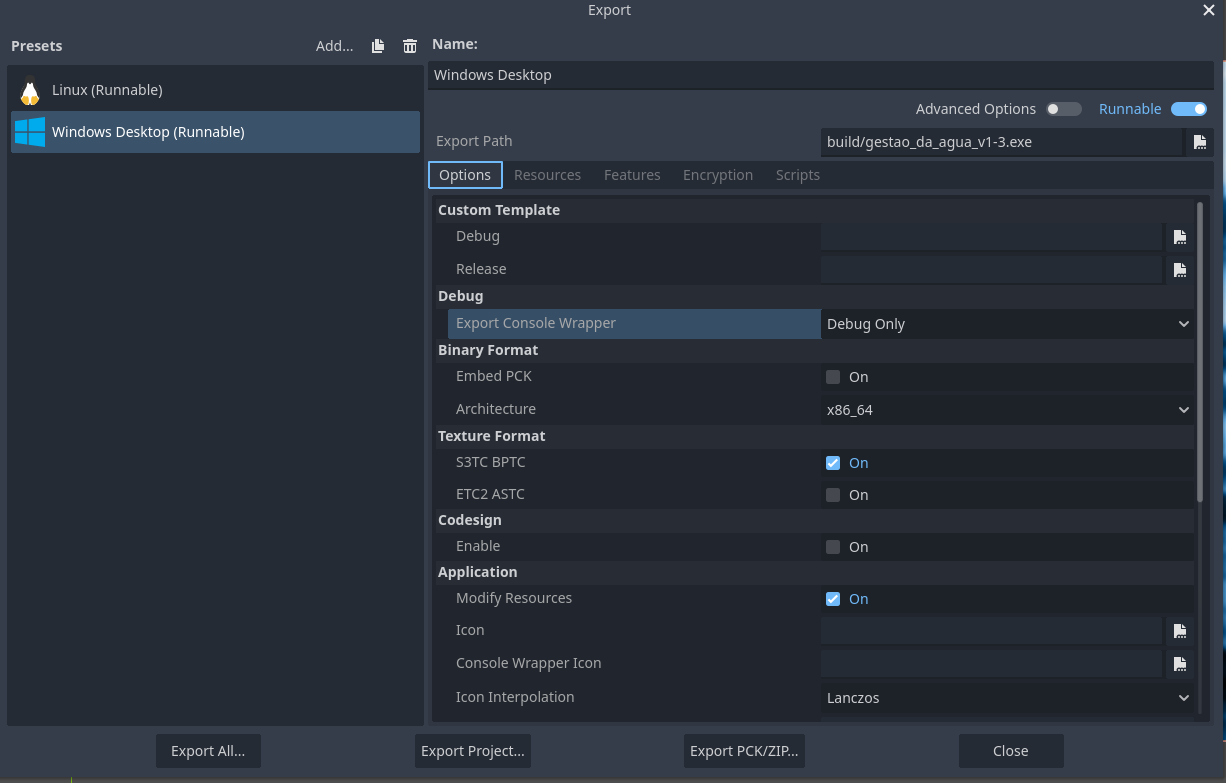 .
.
-
-
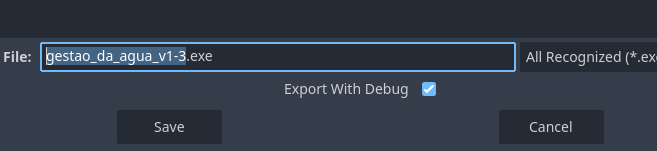 .
.
-
Result:
-
file.exe-
is_debug -> true
-
-
file.console.exe-
is_debug -> true
-
-
-
Platforms
Android
-
Android .
Steam
-
Steam .
iOS
-
iOS .
Multi-threading
-
-
{33:00}
-
WorkerThreadPool
-
-
Did not watch beyond ~{34:00}
-
The video is kinda hard to follow along, as for his english.
-
File System / Project Settings
uid
-
make sure
.uidfiles are committed to version control . In other words,*.uidshould not be added to.gitignore.-
If you forget to commit
.uidfiles to version control, the project will still work locally. However, as soon as you clone the project on another device, the UID references will break. Godot will still be able to resolve them if the paths haven’t changed (since paths are also saved as a fallback), but a warning will be printed for every resource where a path fallback had to be used to infer the reference. This behavior should not be relied upon intentionally, as it is possible for two resources to be swapped around without either of their paths changing. This can occur if the path of one of the resources was changed to be identical to another resource that was relocated elsewhere.
-
Project Settings
-
Access and change Project Settings via Script
-
@onready var gravity = ProjectSettings.get_setting("physics/2d/default_gravity")
Editor
External Editor
-
Tips .
NeoVim - LSP
-
nvim -
--server 127.0.0.1:6004 --remote-send "<esc>:n {file}<CR>:call cursor({line},{col})<CR>"
VSCode - LSP and Open Externally
-
Godot Tools.
-
My setup:
-
 .
.
-
C:/Users/caior/AppData/Local/Programs/Microsoft VS Code/Code.exe-
codedidn’t work.
-
-
{project}/workspace.code-workspace --goto {file}:{line}:{col}
-
-
{project} --goto {file}:{line}:{col} -
For Multi-Workspaces:
-
--goto {file}:{line}:{col}
-
-
My issue .
-
https://github.com/godotengine/godot-vscode-plugin/issues/767
Visual
ANSI Colorization
-
About .
Debug
My Theme
Text Editor
-
(2024-05-03) Only differences from the Default Godot 4 theme:
-
Mark Color
-
ff66660f
-
-
Member Variable Color
-
e0b3fe
-
-
Icons for Scripts and Scenes
Quality of Life Suggestions
Text Editor
-
Option to automatically prefix a dragged variable using Ctrl with
_. -
Implement an option in the Text Editor to disable the ‘close all documentation tabs’ option.-
Disable the ‘Close all tabs’ option in the Text Editor and Editor.
-
-
Disable the ‘Undo’ option so it works only in the Text Editor.
Common Issues
FPS in the Editor
-
-
"You can already enforce a custom FPS cap in both 3.x and 4.x by changing 'Low Processor Mode Sleep (Usec)' in the Editor Settings (higher values result in a lower FPS cap – try
33333). Note that this is not effective if 'Update Continuously' is enabled." -
I set mine to 16666 to lock at 60fps, instead of the default 6900 which locks at 144fps.
-
This also locks the mouse FPS; it’s quite noticeable.
-
The information shown in the editor’s ‘View Frame Time’ is only an estimate of what the FPS would be under those conditions. It doesn’t show the actual FPS in the editor.
-
Godot Shader Language
Syntax
Conversion
-
Godot 3 to Godot 4
-
Godot 3
-
Godot 4
-
-
hint_albedo-
source_color
-
-
WORLD_MATRIX-
MODEL_MATRIX
-
-
WORLD_NORMAL_MATRIX-
MODEL_NORMAL_MATRIX
-
-
CAMERA_MATRIX-
INV_VIEW_MATRIX
-
-
INV_CAMERA_MATRIX-
VIEW_MATRIX
-
-
TRANSMISSION-
SSS_TRANSMITTANCE_COLOR
-
-
GLSL to Godot 4 :
Sky
-
Explanation of this type of shader .
-
Very interesting.
-
The sky can be moved and its color changed to give the impression of time passing.
-
Optimization and Profiling
-
Great miscellaneous optimization tips for Godot .
-
P.S.: Supposed 'Shader Caching' being introduced in Godot 4.
-
Profiling
Instancing
-
% MultiMeshInstance: Instantiate multiple objects on a surface .
-
MultiMeshInstance: Documentation .
-
Uses the GPU to create instances, making it very efficient.
-
-
Mass instantiate objects with better performance (ObjectPooling) {3:49 -> 6:49} .
Addons
Multiplayer
-
Godot Scene Safe Multiplayer.-
*When testing:
-
(2024-11-07).
-
Simple, effective, with typed language.
-
Helped fix some bugs.
-
Worth it.
-
(2024-11-09)
-
Not really worth it...
-
-
I simply prefer to make my low-level interpretation.
-
-
Netfox .
-
'Lag compensation with Client-side Prediction and Server-side Reconciliation'.
-
Docs .
-
Dialogue
-
-
Facilitates dialogue creation.
-
Databases
-
-
The video is huge, unnecessarily.
Importer
Terrain
-
-
Terrain generation.
-
Level Builder / Blocking
-
~Use Godot's CSGs.
-
Can be exported to .gltf.
-
-
-
(2024-07-06) Did not work on 4.3-dev2.
-
-
-
-
-
One of the most useful tutorials.
-
Explains exporting as Godot Mesh and as .gltf.
-
-
-
(2024-07-06) Used version 1.0.4.
-
Interesting, but a bit clunky sometimes. It's a shame this is built-in Godot, as if it were external it would seem much more robust.
-
The addon allows mesh transformations and editing of face, edge, and vertex.
-
I didn’t feel very comfortable with this version, but maybe future versions will change that.
-
The plugin seemed slow, lagging when switching to a scene containing any plugin content.
-
Note: Installation steps must be followed; it is not plug-and-play.
-
Using Godot's CSG nodes proved more direct and consistent, though more limited without any Transform options. CSGs can also be exported to .gltf.
-
-
-
-
Information in: TrenchBroom .
-
-
-
(2024-07-06) Tested and found it unintuitive or irrelevant.
-
-
-
Paid.
-
Water
-
-
OutsideOcean:
-
Self:
-
Outermost Resolution:
-
"Resolution of the outermost LOD. Multiplies by a power of 2 for inner LODs.".
-
-
Levels Of Detail:
-
"Creates rings of meshes surrounding the center of this object.".
-
-
Unit Size:
-
"Where the high-resolution LOD ends and the low-resolution LOD begins. It's a fraction of the total size. If this value is too large, Far Distance is adjusted accordingly. 'Size of quads in the innermost LOD.'".
-
-
Far Edge:
-
How far the entire texture goes, considering all LODs.
-
-
-
WaterMaterial Designer:
-
"A helper node which can automatically set the water shader's parameters based on nodes and resources in the scene. Arrays of GerstnerWave resources get converted into shader parameter arrays for height, foam, and albedo UV waves.".
-
-
-
-
-
Generates currents and water.
-
Did not work on [4.3-dev5], seemed to have some broken .cs files. Maybe for CSharp only.
-
Geometry
-
-
~creation of rounded shapes.
-
-
-
Can be used for procedural generation via a WFC (Wave Function Collapse) solver.
-
-
-
Makes the mesh deformable.
-
-
-
Creates 2D objects that react 'wiggly', e.g., ropes, snakes, tails, etc.
-
-
-
Creates bones that react 'wiggly'.
-
Procedural Generation
Animation
-
-
Used to create State Machines.
-
I found the addon somewhat silly, as it encourages the classic tangled behavior where every state has a "transition arrow" to another state.
-
-
Addon: Animation Player Refactor .
-
Tool to refactor animation tracks and change the root node.
-
Shader
-
-
Creates mirrors.
-
Painting
-
-
*Versions:
-
(2024-04-20) Did not work well on 4.3.
-
-
Very nice addon for image editing.
-
Clicking save overwrites the edited image, so it's destructive.
-
Several cool painting tools, including Clone and Normal Map painting.
-
Likely only useful for quick sketches or cropping, since Aseprite exists.
-
-
-
Can draw over objects and geometry, performing Vertex Paint.
-
Useful for painting terrain, but seems overkill for small objects.
-
UI
-
-
Light tweak for easy UI organization during creation.
-
UI: Inventory
-
-
*When testing:
-
The addon sets a million actions in InputMap that aren’t automatically defined, so nothing works initially.
-
Graphically amateurish.
-
Grid inventory system implemented via:
-
Storing an array of "_cells", indicating occupied cells. Empty cells marked 'null'.
-
-
Uses dynamic typing, sometimes some things are static.
-
Quite confusing, didn’t understand much.
-
Good features for grid-style inventory.
-
-
-
-
*When testing:
-
(2024-09-16)
-
Insanely complex and confusing code, thousands of lines and dozens of scripts.
-
Plugin doesn’t do much.
-
Adds multiple inventory types but no polish for any.
-
Cannot envision a use case for this system.
-
Cannot recommend using it; extremely dense and strange to understand.
-
Also, grid inventory system is mediocre. Lacks quality of life.
-
Uses dynamic typing, sometimes static.
-
-
-
Addon: ExpressoBits's Inventory System.-
*Versions:
-
(2024-04-20) Had issues on 4.3, demos did not open.
-
-
Creation and "facilitation" of inventory UIs.
-
Seems wiser to simply make your own inventory system than spend time learning this addon.
-
Input
Physics
Ads
ECS
-
Godex .
-
In C++.
-
Doesn’t work.
-
(2025-03-01) No updates for 2 years. Tested on this version of Godot 4.0-stable.
-
-
Gecs .
-
In GDScript.
-
Impressions :
-
Poorly made, in programming standard terms.
-
Better documented and organized than Godot ECS.
-
-
-
-
yihrmc.
-
Impressions :
-
Similar to Gecs.
-
Whatever.
-
-
-
-
In GDScript.
-
Impressions :
-
Holy moly, no idea what’s going on in these scripts, what a mess.
-
Dynamic typing, weird, etc. Nope.
-
-
External Integrations
External Camera
-
Limitations :
-
This class is currently only implemented on Linux, macOS, and iOS.
-
On other platforms no CameraFeed s will be available.
-
To get a CameraFeed on iOS, the camera plugin from godot-ios-plugins is required.
-
-
-
https://www.youtube.com/watch?v=kjtfbHHWnT0
-
Not yet watched.
-
-
Libraries for image recognition:
Open links in browser or folders in OS
-
-
OS.shell_open()or 'control node Link Button'.
-