Visual Studio
-
(2025-11-04)
-
Version : 17.14.19
-
What comes with it (Desktop App Development for Windows in C++)
-
MSVC Compiler
-
Microsoft Visual C++ Compiler (MSVC) :
-
The default compiler for Visual Studio.
-
Supports modern C++ standards (C++11, C++17, C++20, etc.).
-
-
-
MSBuild
-
Tool used to build Visual Studio projects.
-
Responsible for interpreting and executing project files ( .vcxproj ).
-
-
Windows Tools
-
Windows SDK : Automatically included with Windows development option.
-
Windows Resource Compiler : For working with resource files.
-
Linker : To create PE/COFF binaries used by Windows.
-
-
Debugger
-
Visual Studio includes a debugger that works with PDBs (Program Database Files) generated by the compiler.
-
-
C++ Libraries
-
Microsoft C++ Standard Library (STL) :
-
Optimized C++ standard implementation for Windows.
-
-
ATL (Active Template Library) :
-
For creating COM-based applications.
-
-
MFC (Microsoft Foundation Classes) :
-
For creating Win32-style graphical interfaces.
-
-
-
Graphics Tools
-
Blend for Visual Studio :
-
Used to create graphical interfaces using XAML.
-
-
DirectX SDK (now integrated into Windows SDK):
-
For 3D graphics and game development.
-
-
-
Integration Tools
-
vcpkg :
-
C++ package manager to download and configure external dependencies.
-
-
Windows Performance Toolkit :
-
Tool for analyzing performance and resource usage.
-
-
File System
New Project
-
Creates
-
.sln
-
.vcxproj
-
.vcxproj.filters
-
Multiple Projects
-
Using files from one project in another project .
-
Project Settings -> C/C++ -> General -> Additional Include Directories.
-
Files
-
.sln
-
"Visual Studio Solution".
-
-
.vcxproj
-
"VC++ Project".
-
-
.vcxproj.filters
-
"VC++ Project Filters".
-
These are folders that exist in the project, but not in the file system; it's just a file filter for organization.
-
"Virtual organization".
-
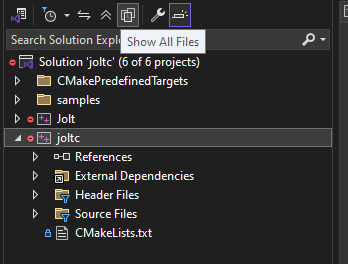
ShowAllFilesis super useful to finally see the actual files. -
 .
.
-
-
.vcxproj.user
-
"Per-User Project Options".
-
Current Visual Studio configuration.
-
Libraries
-
Linking Libraries in Visual Studio .
-
At no point does he explain how to create a library, only how to use one.
-
In the second half of the video, he explains the process.
-
He downloads a folder with binaries and uses only:
-
GLFW\include-
For the header files.
-
-
GLFW\lib-vc2015-
For the static library and/or dynamic library.
-
He uses only the static library.
-
-
-
For the header files:
-
Project Settings -> C/C++ -> General -> Additional Include Directories.-
$(SolutionDir)Dependencies\GLFW\include
-
-
-
For the libraries:
-
Project Settings -> Linker -> General -> Additional Library Directories.-
$(SolutionDir)Dependencies\GLFW\lib-vc2015
-
-
Project Settings -> Linker -> Input -> Additional Dependencies.-
glfw3.lib
-
-
-
-
From what I understand, the Linker options in Project Settings do not appear when creating a static library
.lib.
Building
-
Sometimes building a Project can cause others to be built, due to:
-
Project Settings -> C/C++ -> General -> Additional Include Directories. -
or
-
Project Settings -> BuildEvents.
-
-
This is done automatically due to the "dependency graph" created, where dependencies are always built before the Project.
-
Thing .
-
He uses Premake, not CMake.
-
Recommendations
Folders
-
Note :
-
Considering that each Project can have both outputs defined individually, for each configuration and platform, this creates A LOT of confusion when set strangely.
-
Can generate billions of scattered files, making it very confusing to understand where things are and which files are important.
-
-
I liked the configs below. They helped.
-
-
Output Directory:
-
$(SolutionDir)out\$(ProjectName)\$(Platform)\$(Configuration)\
-
-
Intermediate Directory:
-
$(SolutionDir)intermediates\$(ProjectName)\$(Platform)\$(Configuration)\
-