Saving
Scene changes
Save
Change Scenes of a SceneTree (
change_scene_to_file()
and
change_scene_to_packed()
)
-
get_tree().change_scene_to_file("res://_path_.tscn") -
get_tree().change_scene_to_packed(preload("res://_path_.tscn"))
Resources
-
*Global Cautions:
-
'Make Sub-Resources Unique':
-
Be very careful NOT to mark this option in the upper right corner of the Inspector. This option makes ALL resources of the Scene unique, including Scripts, Resources, and any other Scene property. This is dangerous because: making Scripts unique means any change to the original script WILL NOT be propagated to the Unique Script, making it very complex to debug and apply modifications in Scenes that had this option marked; it makes the Scene "rogue without trace", simplistically. This property may have use in special cases, but use it with caution. If you want to check whether a Scene is under the effect of this property, you can right-click it in the Scenes tab and inspect 'Sub-Resources'; by clicking each Sub-Resource you can check if they have the expected pathing, or if they have a script path like {_scene_path_.tscn:_id}.
-
-
-
How to create a new Resource:
-
Click the "File+" icon at the top of the Inspector, or right-click somewhere in the FileSystem tab and choose 'New Resource'.
-
Choose from existing resource types, or choose to create an empty resource.
-
After this, the resource will appear in the Inspector, but it has not been saved. To save it click the Disk icon at the top of the Inspector and then 'Save As'. Once done, the resource is created and saved in the FileSystem.
-
If you want a Resource to inherit from a script, the script must use {extends Resource}, otherwise the game will crash indicating this type of inheritance is required.
-
If you use a script with a 'class_name', its name can be found during step [2], shortening the step of adding the script to the resource manually after step [3]. Giving a 'class_name' is optional and not required at any point during resource creation and use.
-
-
Local To Scene:
-
If the Original Scene already has the Resource:
-
Enabling this option and instancing the Scene in another SceneTree will make the Resources inside the new Scene have their Path automatically changed to the type { scene-tree-path.tscn::unique-id }. If you instance the Scene multiple times, manually via the Inspector or by dragging it from the FileSystem, each instance will have a different ID.
-
Disabling this option and instancing the Scene in another SceneTree will make the Resource inside the new Scene keep the same Path as the 'Original Scene Resource', which can be either { resource-path.tres } or { scene-path.tscn:id }, depending on how the Resource was defined inside the Original Scene.
-
-
If the Original Scene does not contain the Resource, only the empty export slot:
-
In this case, checking 'Local to Scene' will have no effect, since there is no instance of the Resource being made.
-
-
-
Resetting the Path:
-
If the Resource Path is of the type { resource-path.tres } and you reset its path in the inspector, Godot will assign a new path of the type { scene-path::id } or { scene-tree-path.tscn::id }, depending on how the Resource was defined. If you want to make the Resource global again, setting the path back to { resource-path.tres } will not work; you must re-export the Resource.
-
-
Tools and Interactions:
-
If the Resource is loaded with 'New resource-name ', it will generate a new instance of the Resource that will have a Path of the type { scene-path::unique-id } or { scene-tree-path.tscn::unique-id }.
-
If the Resource is loaded with 'Load', 'QuickLoad' or dragged from the FileSystem, it will generate an instance with a Path of the type { resource-path.tres }.
-
If you use the 'Make Unique' option, it will "force" the Resource to be unique, making its Path be of the type { scene-path::unique-id } or { scene-tree-path.tscn::unique-id }, depending on how the Resource was defined.
-
If you use the 'Copy' and 'Paste' option from the Resource tab, the copy will have the same Path as the original, making them linked. The Path will be of the type { scene-path::id } or { scene-tree-path.tscn::id }, depending on how the Resource was defined. You can also get this result by resetting both Resources' Paths simultaneously and then clicking save, causing Godot to understand that they should share the same Path; however, this is volatile and should be avoided.
-
If you use 'Duplicate' in the Resource tab, it will have exactly the same effect as the 'Copy' and 'Paste' option.
-
-
Summary of how to create a unique instance of a Scene in a SceneTree:
-
If the Original Scene already has the Resource:
-
It is very useful to put the Resource inside the Scene and keep the Local To Scene option always active so that new instances in the SceneTree have different Paths within the Scene, of the type { scene_path :: unique_id }. If I want to disable 'Local To Scene' and still make each Scene unique in the SceneTree, it is possible to mark 'Make Unique' on the Scene's Resource, although this is redundant since 'Local To Scene' already handles it automatically.
-
Best practices: in the above case, it is interesting to never change the Resource values inside the Original Scene, but rather in its instances in the SceneTree. This makes parameter changes easier to understand during instancing/modification of the Resource.
-
-
If the Original Scene does not contain the Resource, only the empty export slot:
-
In this case, marking 'Local to Scene' will have no effect, since there is no new instance of the Resource being made. Therefore you must 'Load', 'Quick Load' or drag the Resource from the FileSystem to get the Resource. After that, mark 'Make Unique' or reset the Path in the inspector so Godot considers the .tres file path is not the correct path and assigns a new local Path.
-
-
-
FileSystem Directory:
-
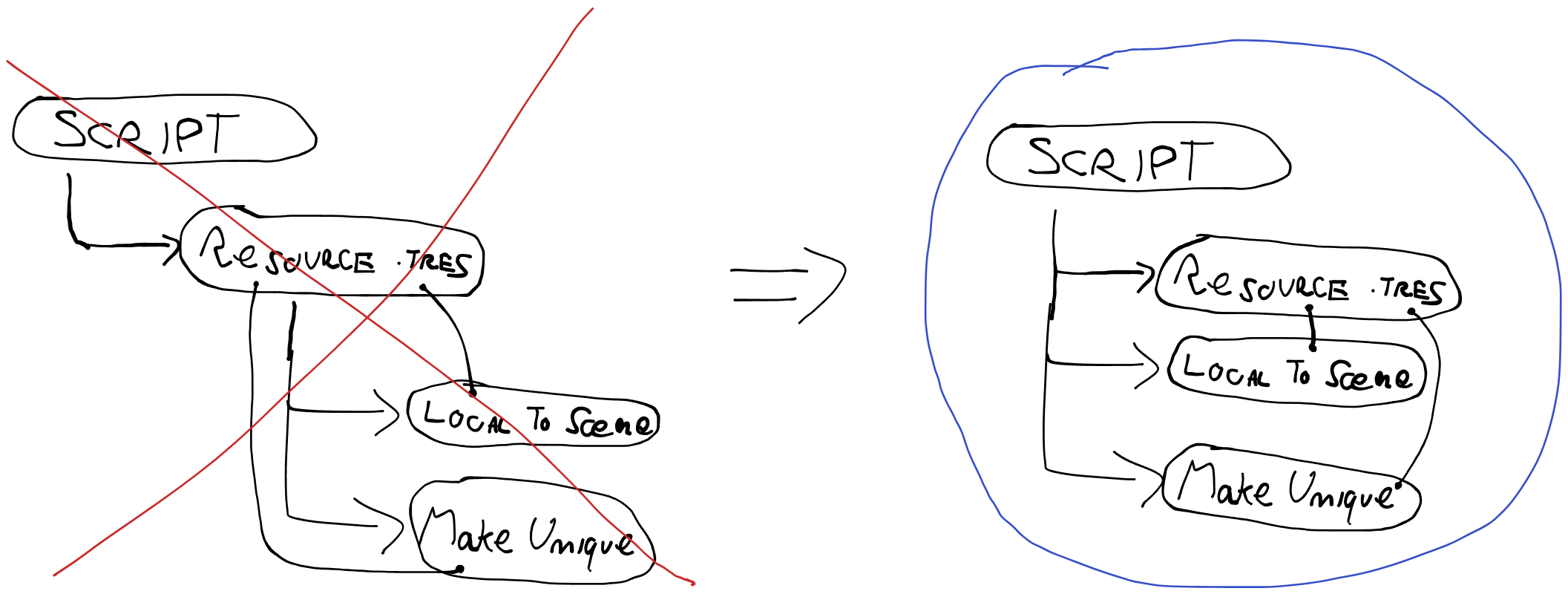
'Local to Scene', 'Make Unique' and 'Path' seem to add complexity when it comes to directory storage, but it's actually simple:
-
 .
.
-
-
We note that when making a Resource Local to Scene or Make Unique, dependencies between the "Original Resource" and its 'unique version' are not created. As a consequence, for example, you can put a Resource in a Scene, make it unique via Make Unique and then delete it from the FileSystem without problems, since the only dependency of this new Resource version is the Script. Visually, when making 'unique versions' of a Resource, you always create "siblings" of that Resource, never "children".
-
As a consequence, we can associate the Resource Path with the FileSystem path:
-
If the Path is { resource-path.tres }, then obviously there is a separate Resource file. You can be sure this Resource points directly to a Script.
-
If the Path is { scene-path::id }, then there is no separate Resource file, since the Resource is saved in the Scene. You can be sure this "Scene Resource" (i.e., SubResource) points directly to a Script, without any dependency on other Resources, even if it originated from one.
-
-
That said, we can also analyze cases where it is interesting to use a .tres file to store a Resource:
-
If you want multiple Scenes to have their behavior linked.
-
If you want a "shortcut"/"Template" to facilitate assigning properties. In this case, the Resource is used in the Inspector and then made Make Unique. This allows the "Template" file to be deleted at any time since no Scene permanently depends on the "Template", it only used it as a "shortcut" when initially configuring the Resource properties.
-
This option has a "hidden advantage" that the Template's information is only updated if the Template is being used by a Scene in the Editor. Therefore, the advantage is that unintentional changes to the Resource script will not affect Template files until they are instantiated. This is the closest option to a 'backup of information' I can come up with when thinking about all the different ways to use a 'Resource in Scene' or a 'Resource as .tres'.
-
-
-
-
Errors due to missing files:
-
If the Resource's ".tres" file ceases to exist while the path is { resource-path.tres }, the Scene will open normally but the game will crash.
-
If the Resource's Script ceases to exist while the path is { resource-path.tres } or { scene-path::id }, the Scene will be corrupted and will not open, requiring editing the .tscn file with external text editors to fix the corruption.
-
-
You can use
var recurso = load("_resource-path.tres_")}inside the Script that wants access to the Resource if there are loading problems. -
Resource 'Name' property:
-
Completely optional, it just makes the Name appear in the Inspector.
-
Initially, I tried to follow some rules when using the Name to organize my Resources:
-
Templates do not have a name, since I want to identify them by the "_" prefix.
-
When using a Template and making it local with Make Unique, a Name is given to the Resource so it is easier to identify in the Scene and its Instances. Be careful to give the Name after making it unique, because if you forget, you will break rule [1].
-
When changing the Resource of an Instance in a SceneTree, it is encouraged to change the Resource Name, but this is only a suggestion since the Undo button already allows identifying that the Resource diverges from the Scene's Resource. There is no problem giving a new Name to the instanced Resource, since using Undo will revert the name to the one given in the Original Scene.
-
-
-
My mentality and plans for handling Resources:
-
I want Entities to have identical Resources initially, making them unique only if I decide so. In other words, I do not want to use Local to Scene on my Resources; I want them to be unique only via Make Unique.
-